
monday.com New Features - How to get started with monday workdocs
What is a workdoc?
Think of it as a flexible, multi-media whiteboard where you and your team can record all notes and ideas related to one central topic. By adding individual elements to your workdoc, all your loose thoughts and ideas can come together in one place, right inside monday.com, where all the rest of your work is stored.
There are two spaces in which you can add a workdoc; either within your Workspace, or via a Docs Column on your board.
Workspace
To add a workdoc to your Workspace, click on the "+" icon at the top of your left-pane, and select "New Doc" from the dropdown menu.

Docs Column
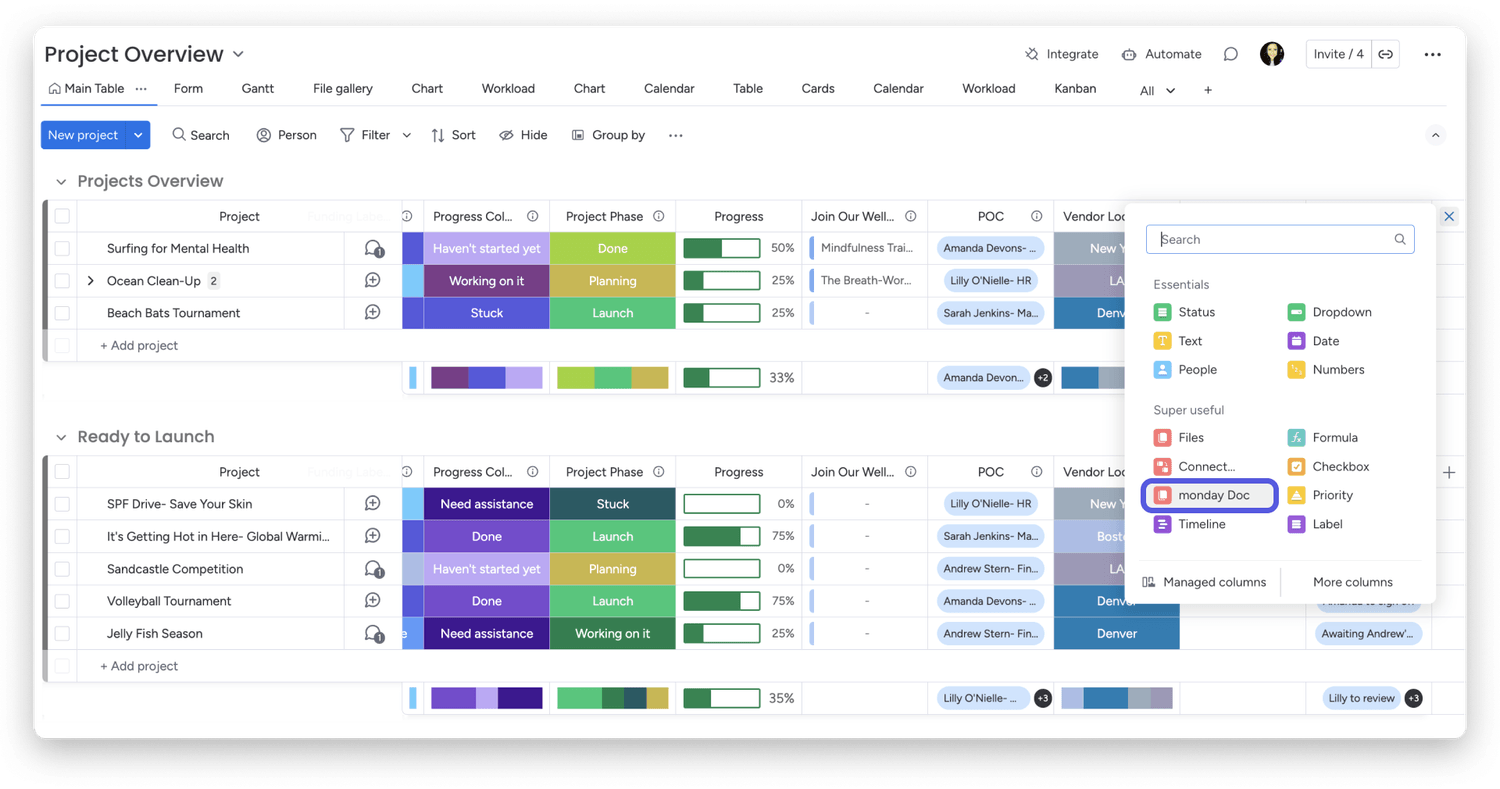
Connect docs across boards, create new docs, and even access your own Doc templates in your Docs Column. To add a Docs Column to your board, click on the "+" icon to the right of your columns and select "monday Doc" from the column options.
Types of workdocs
Just like boards and dashboards, there are three types of workdocs:
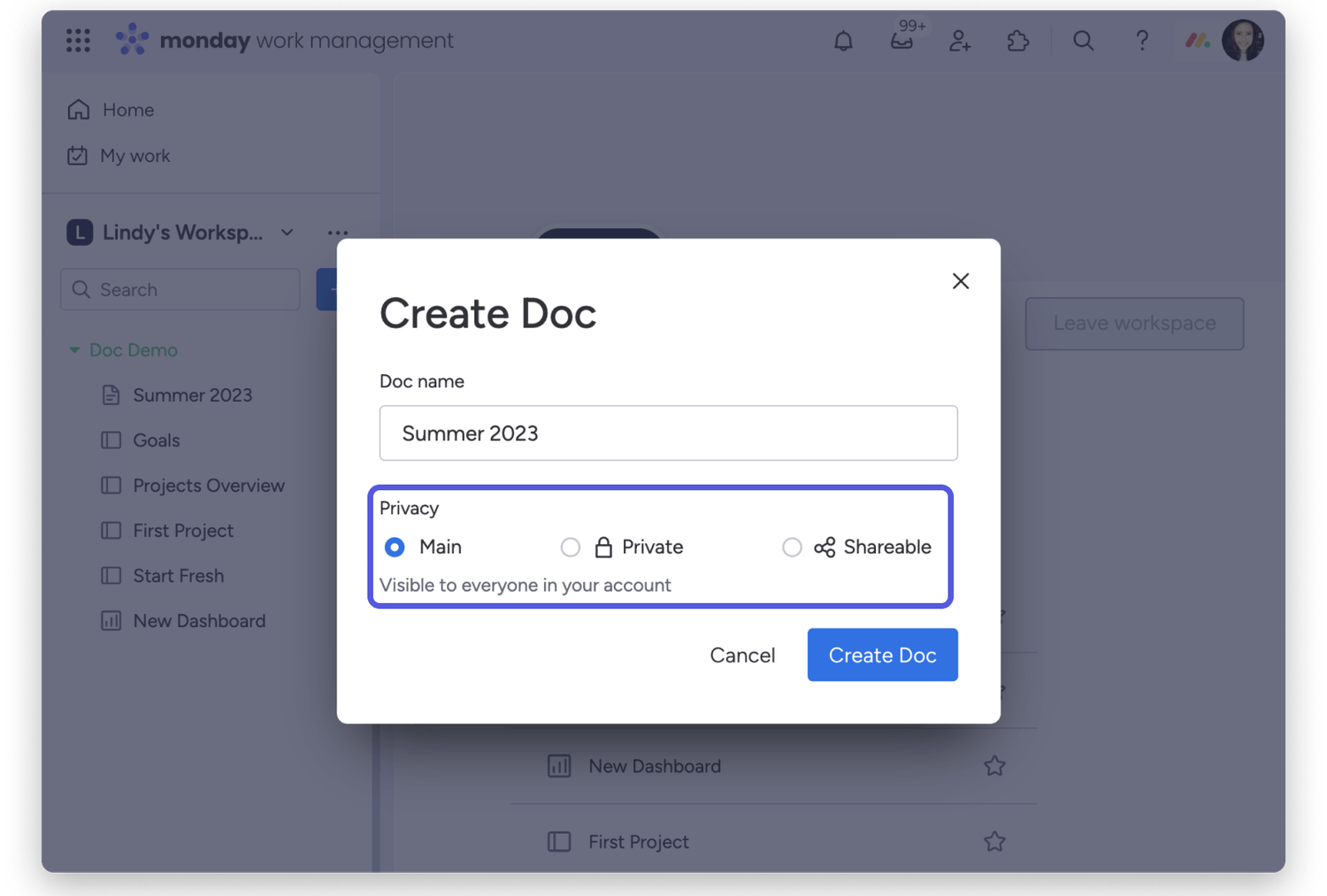
Main workdoc- Main workdocs are visible to anyone who is a team member within your account. A team member can be an admin, a member, or a viewer. To learn more about the difference between each type. Anything you will create in this workdoc will be accessible and transparent to your team members.
Private workdoc - Private workdocs can only be seen by the person who created the workdoc and by the specific team members they invite to join the workdoc. Private workdocs are only for internal users (viewers and team members), meaning that you cannot invite guests to them.
Shareable workdoc - Shareable workdocs are used when you want to share a workdoc with people outside your team or company, such as clients, interns, or freelancers. You can invite these people as guests within your account in order to collaborate with them. When you invite a guest to a Shareable workdoc, they will only have access to the specific workdoc they have been invited to, and will not have access to any other information within your account. You can also invite viewers or team members to your Shareable workdoc.
Customize your workdoc
Customizing your workdoc to suit your needs has never been easier. You can choose various style options for the layout, text, and header of your workdoc to ensure it meets your aesthetic goals.
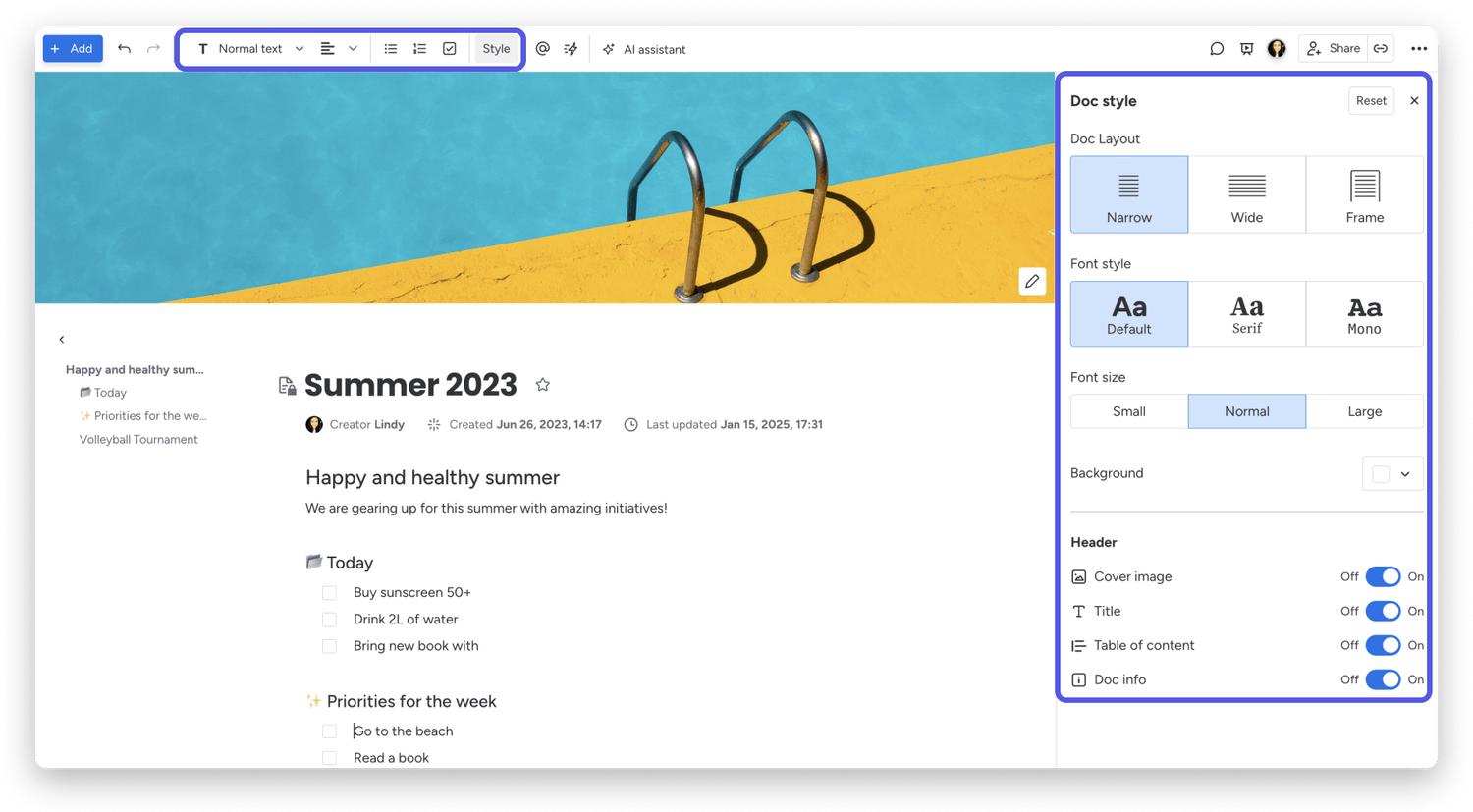
You can also add various elements, such as media and widgets, to your workdoc to organize resources, streamline workflow, and present relevant data, all in one place!
Collaborate with your team
When it comes to team collaboration, workdocs is an effective tool in offering seamless communication and centralized work efforts. Add team members to your workdoc, communicate with comments or via the update feed, and visit previous versions of the doc to see its progression.
Share and export your workdoc
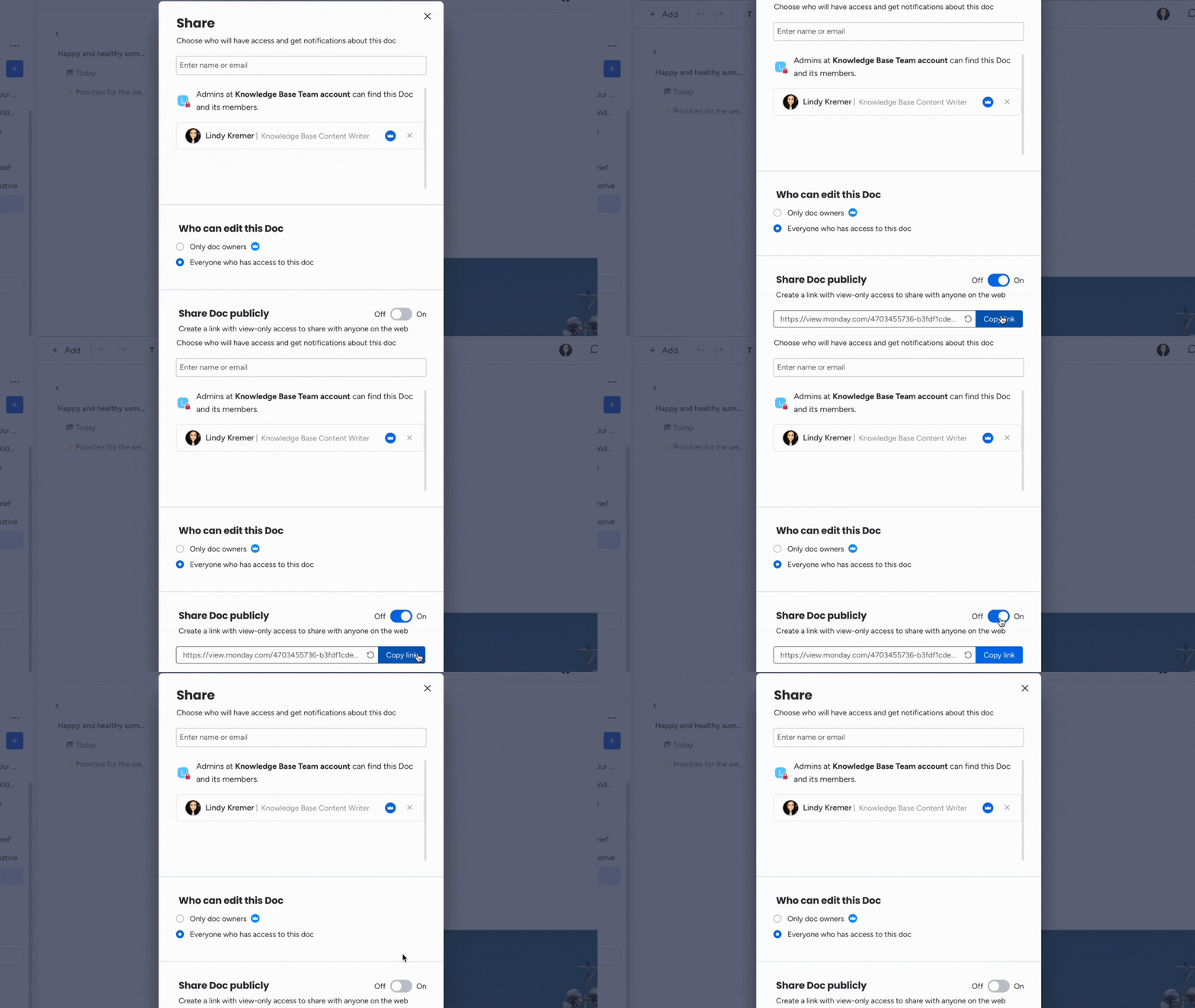
Needing to send your workdoc to members external to your monday.com account? With workdocs you can generate a link to a secure, read-only version of your workdocs. You also have the option to export your workdoc to a PDF version, or present the doc via presentation mode.
workdoc permissions
There are two different types of edit permissions that you can implement in your workdoc:
Only doc owners - Only workdoc owners (members with a blue crown beside their name) can make edits to the docs.
Everyone who has access to this workdoc - Every account member with access to this workdoc can make edits. This means that if it is a main workdoc, anyone with access to the workspace it was created in can make edits. If it is a private or shareable workdoc, any member of the workdoc will be able to make edits.
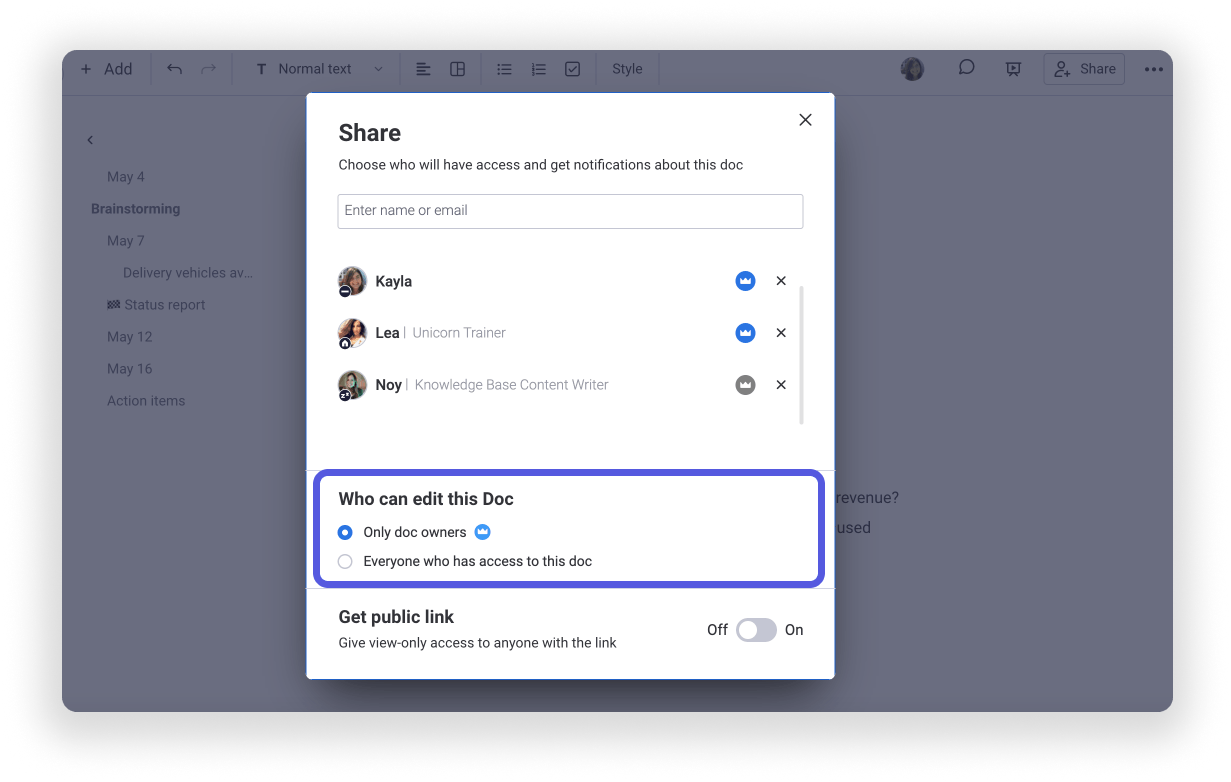
You can also turn any workdoc member into an owner by clicking the gray crown icon beside their name. An owner is, by default, the person who created the workdoc and someone whom the creator has crowned as an additional owner. Like a board, only the workdoc owner can crown other owners and delete or duplicate the workdoc.
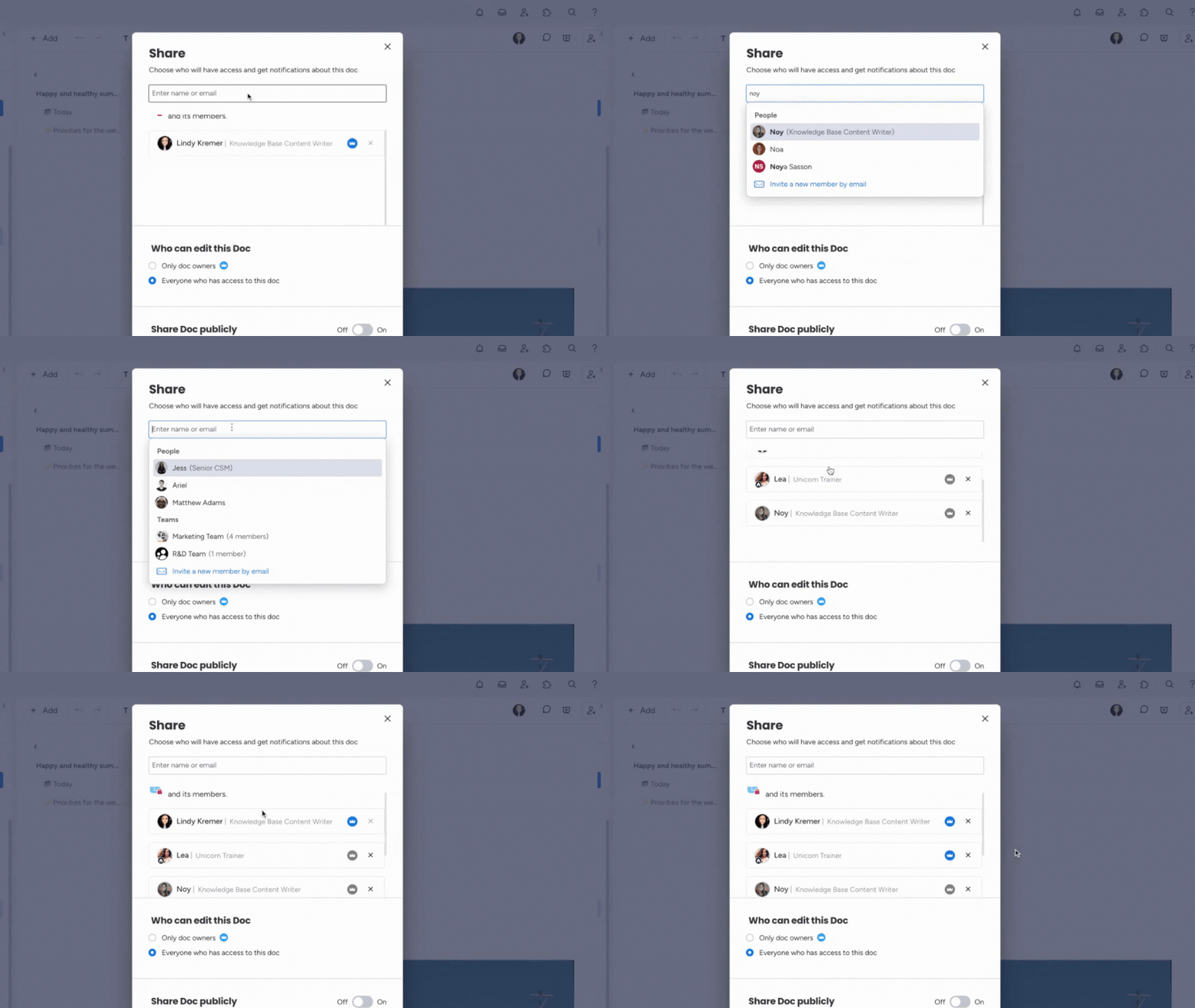
Note: You can change these permissions easily by clicking the "Share" button and then selecting one of the two options at the bottom of the pop-up window.
Integrate workdocs into your workflow
Optimizing your workflow is the name of the game when it comes to monday workdocs! The doc is a flexible and dynamic space to turn your text into board items, add dynamic values that update in real-time, connect workdocs across the account, and utilize automations and integrations for smooth work processes.
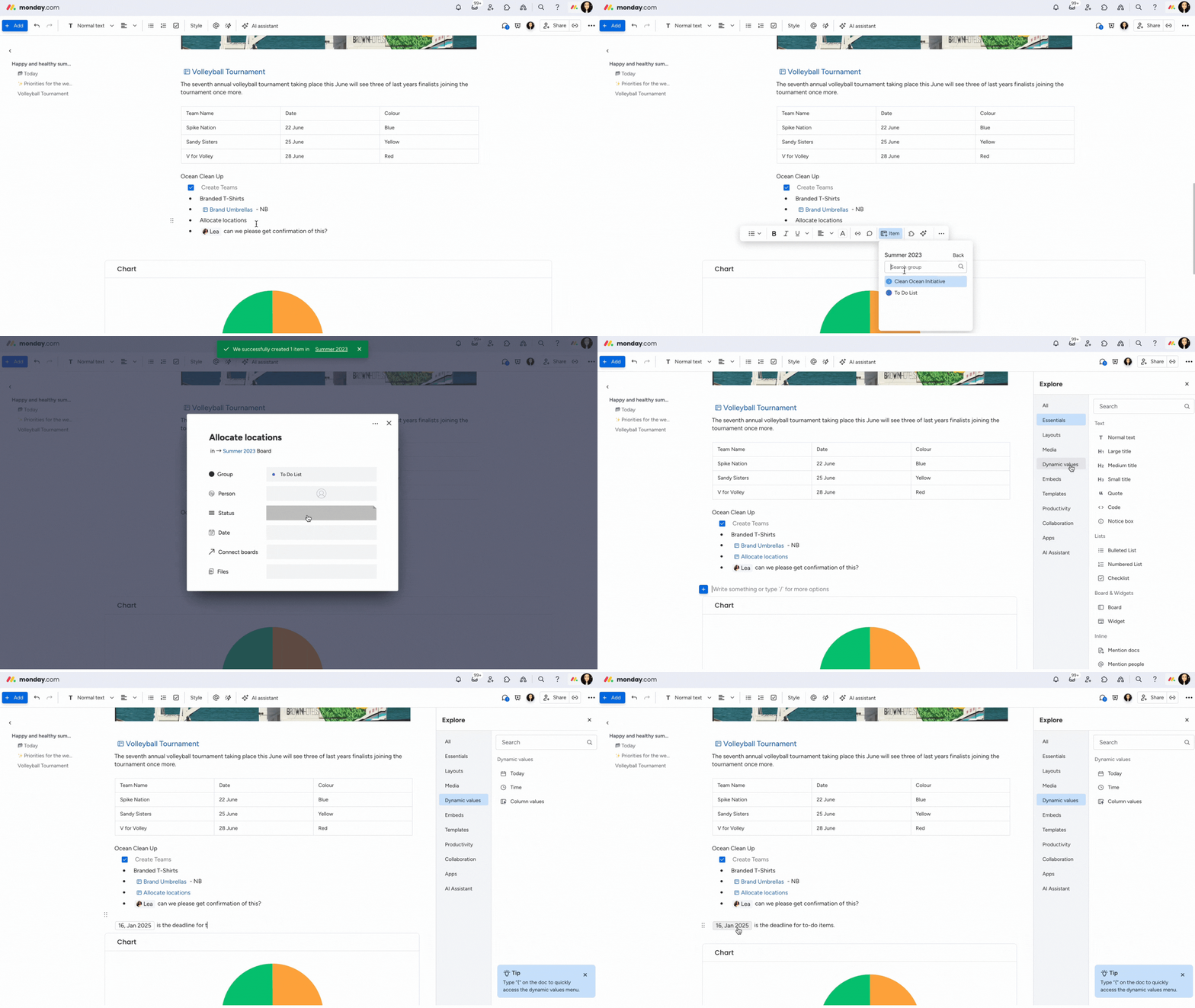
Note: You can read our article to learn more about the various ways to integrate workdocs into your workflow for seamless processes and account integrations.
workdocs AI Assistant
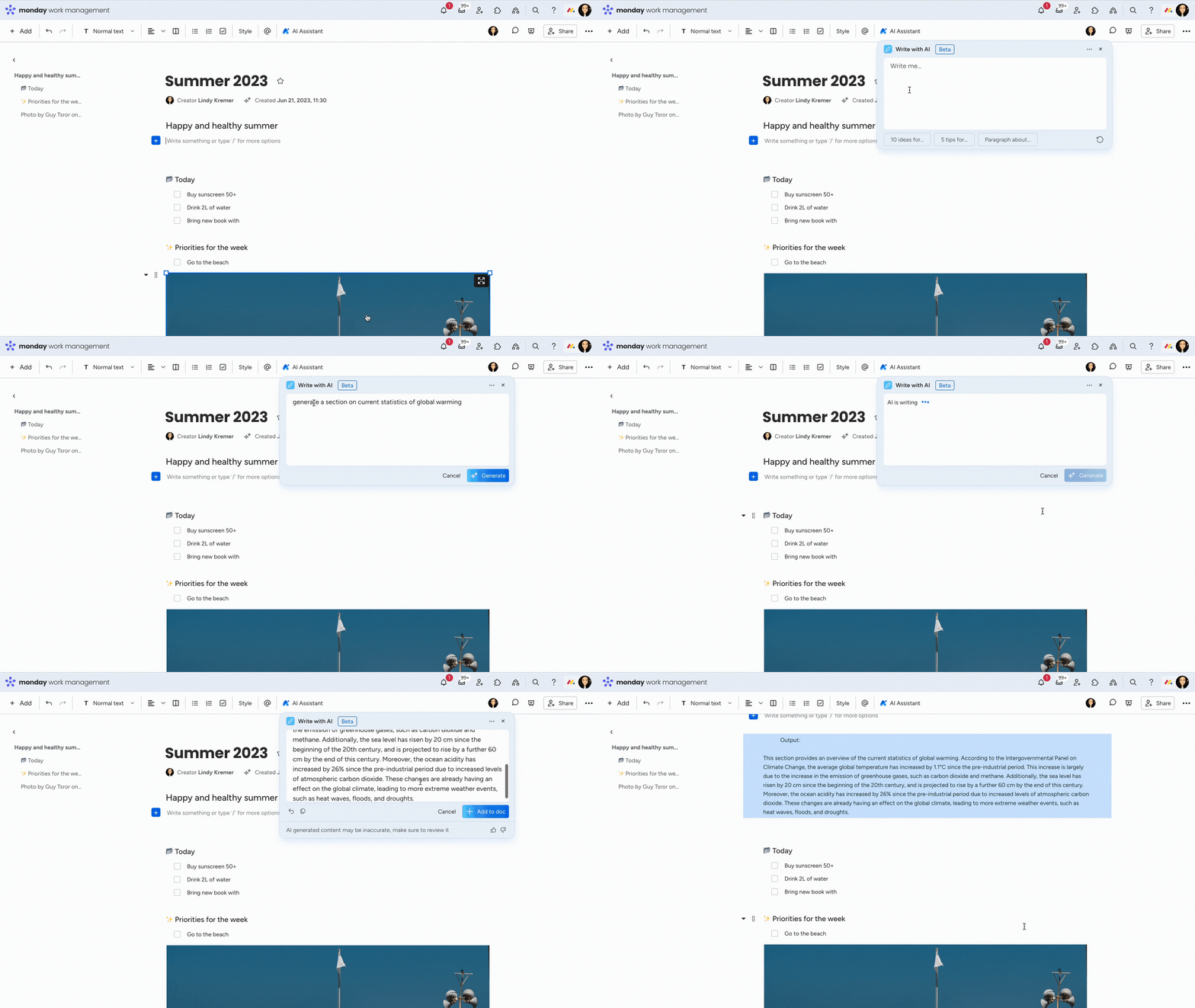
Need to create a summary of your workdoc to highlight the key points? This can be achieved with a single click using monday's Sidekick. The monday Sidekick will gather data from your doc and create a concise overview for you. Our AI sidekick can also generate any text for you to add to your doc!
Search for a workdoc
You can quickly locate a workdoc in your account by using the "Search Everything" feature. Click the "Magnifying glass" icon in the top right corner of your screen, then select the "docs" tab below the search bar. Enter relevant keywords from the doc you're looking for and choose the desired workdoc from the search results.
💡 Stay tuned for more updates in the future!
👉👉Start your free trial with us today: www.achievan.com/mondaydotcom
SHARE


Subscribe now.
Sign up for our newsletter to get the most interesting stories of the day straight to your inbox before everyone else
We help teams improve Productivity by implementing no-code software solutions
A Division of
Execute Strategy, Inc.
Connect with Us


Copyright © Execute Strategy Inc. O/A Achievan 2026