
monday.com New Features - How to Share and Present Your Dashboard as an AI-Generated Report
Whether you’re collaborating with internal team members or external partners, sharing and presenting your dashboards is simple and seamless. This makes it easy to communicate key metrics, project statuses, and insights clearly, helping drive transparency, accountability, and confident decision-making.
Export your Dashboard
When it comes to exporting your Dashboard, you have various options depending on the widgets you have on your Dashboard.
Export to PDF
Exporting your widgets to a PDF document allows you to easily share the current state of your Dashboards with colleagues. Click on the three-dot menu at the top right-hand corner of your dashboard and then select "Export to PDF".
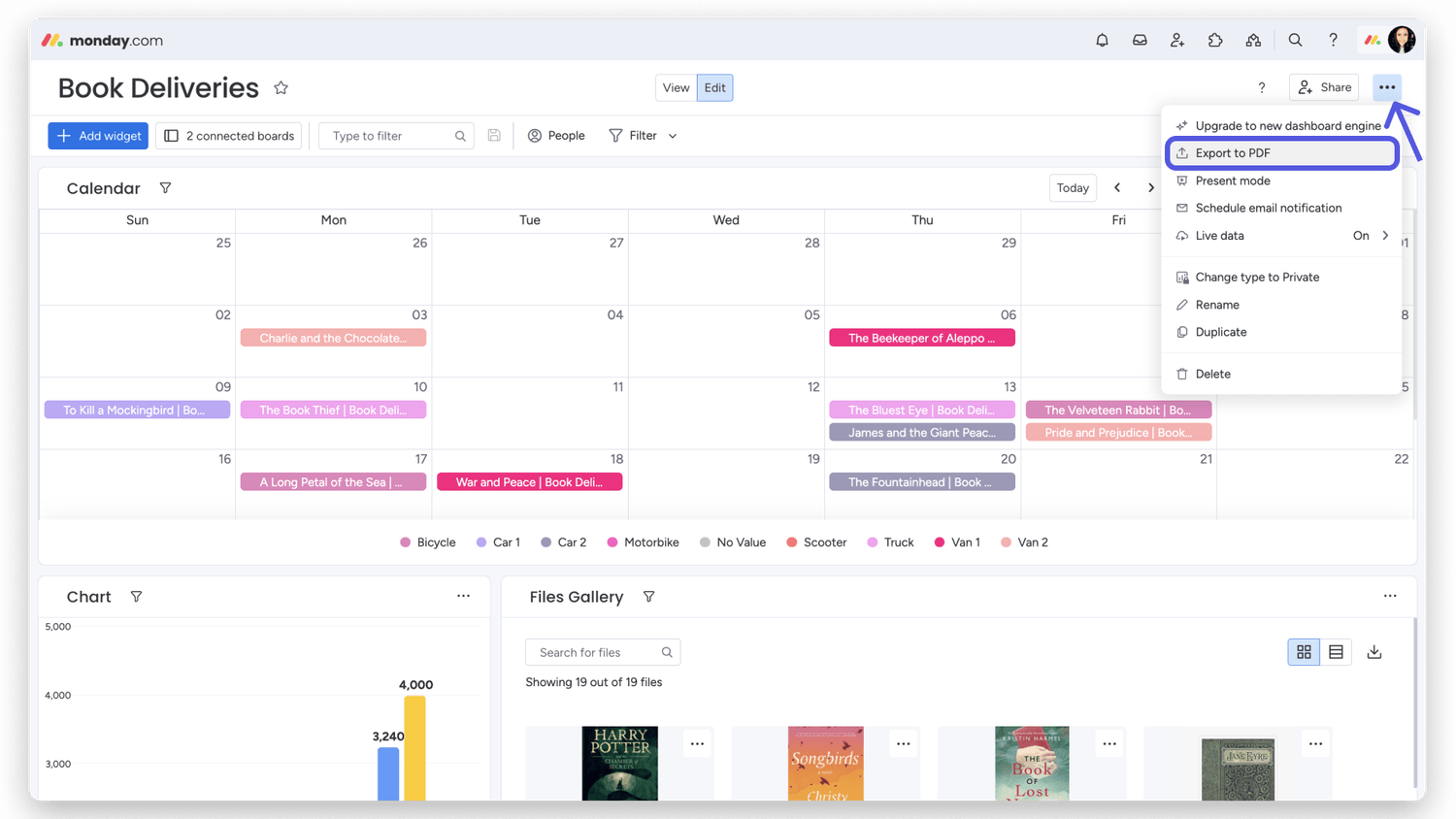
All widgets on your Dashboard and Board View can be exported to a PDF document.
Export to Excel
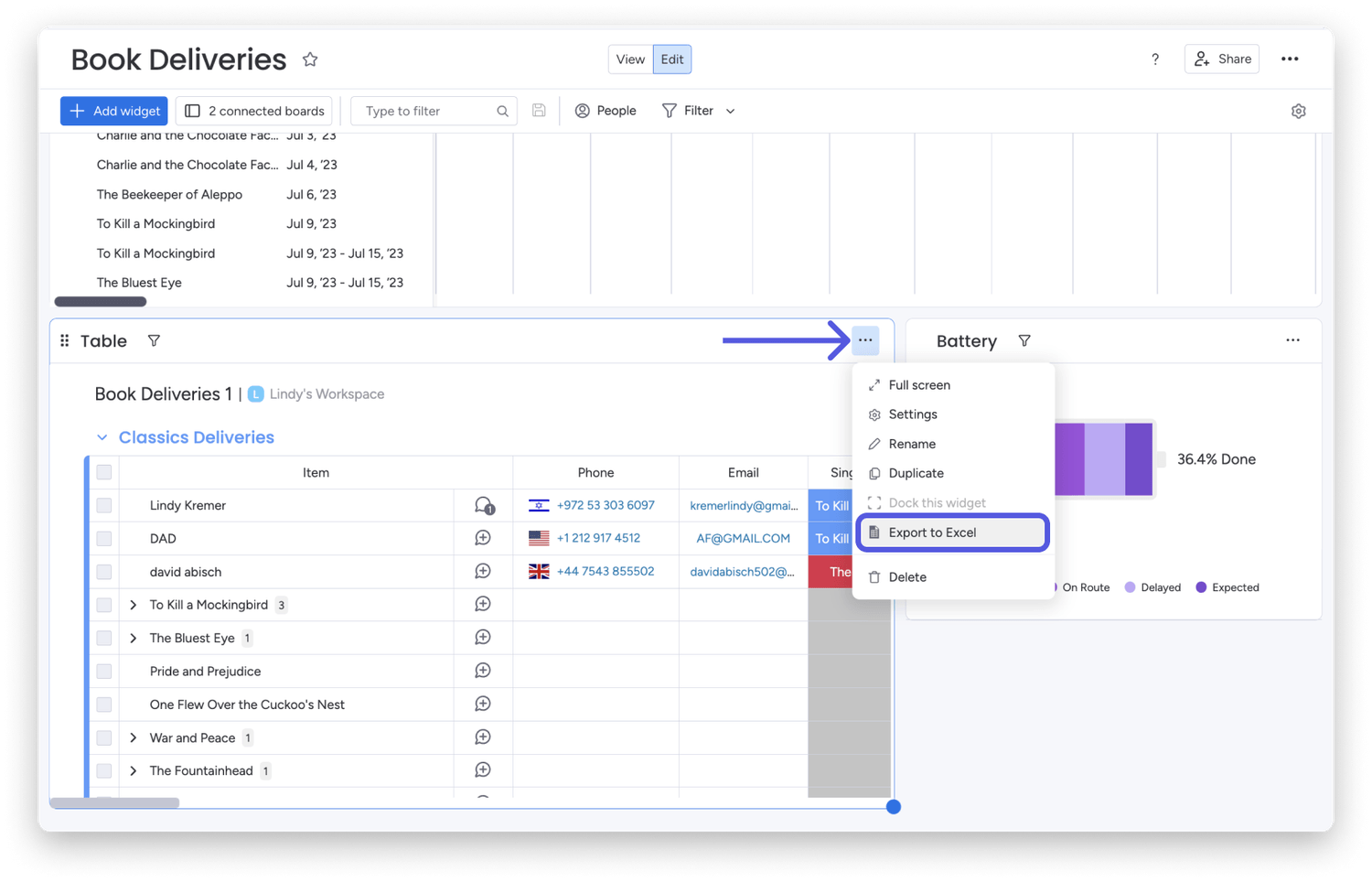
Currently, it's not an option to export your entire dashboard to Excel, but you can export the following widgets to Excel:
Click on the three dots at the top right-hand corner of your widget, and select "Export to Excel":
The Chart Widget
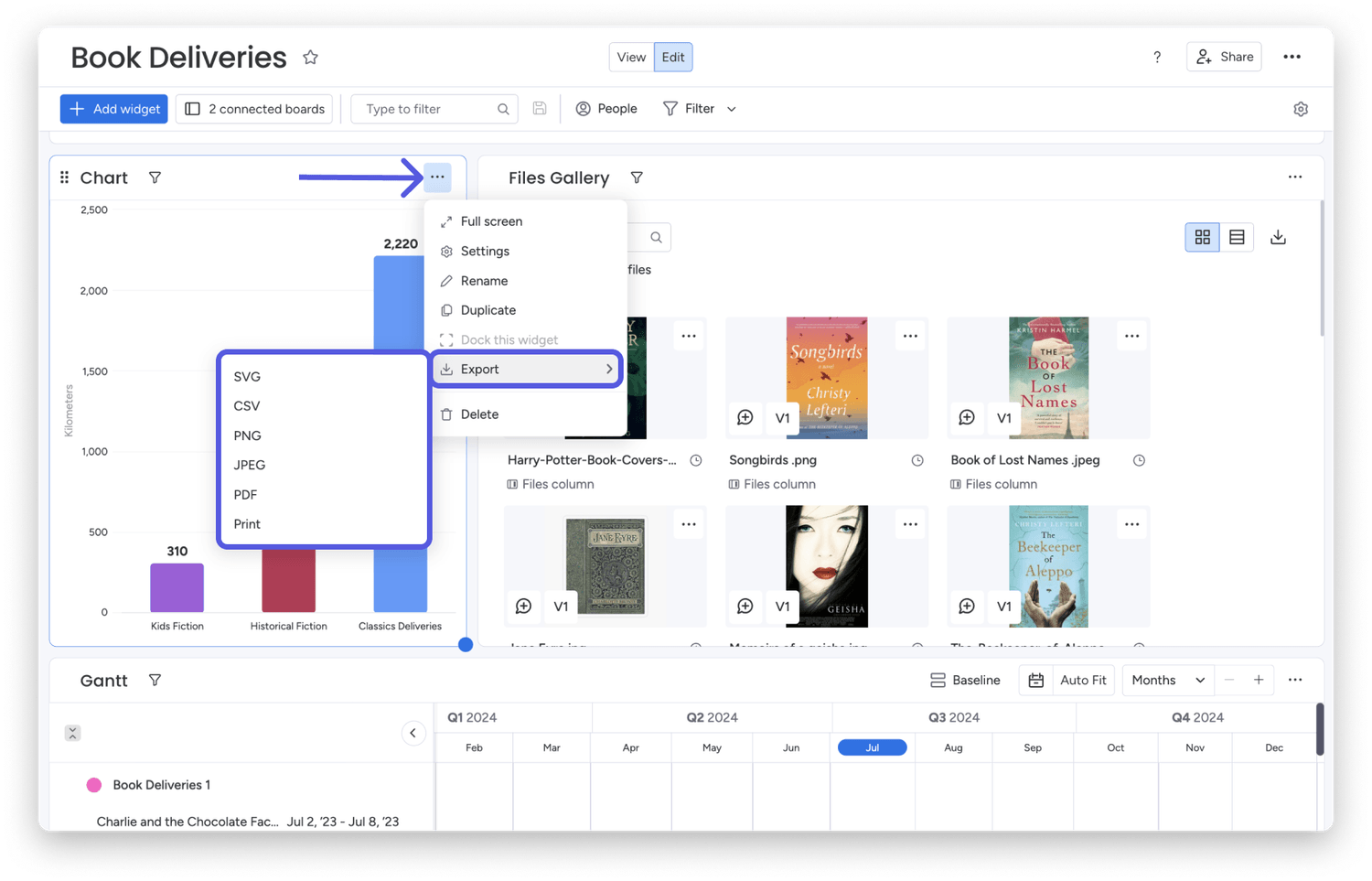
The Chart Widget can be exported as different file types. Click the 3-dot menu above the widget and select "Export" to launch a menu of these file types. Select the file type you wish to export the widget to.
Schedule a PDF export
Note: This feature is being gradually released and will eventually be rolled out to all Standard, Pro, and Enterprise accounts.
You can schedule a PDF export of your Dashboard to be sent periodically to you and other colleagues. This ensures everyone stays aligned with the latest insights and project updates without needing to go to the Dashboard!
Standard plan: 1 Scheduled PDF export
Pro plan: 5 Scheduled PDF exports
Enterprise plan: 30 Scheduled PDF exports
Create a scheduled PDF export
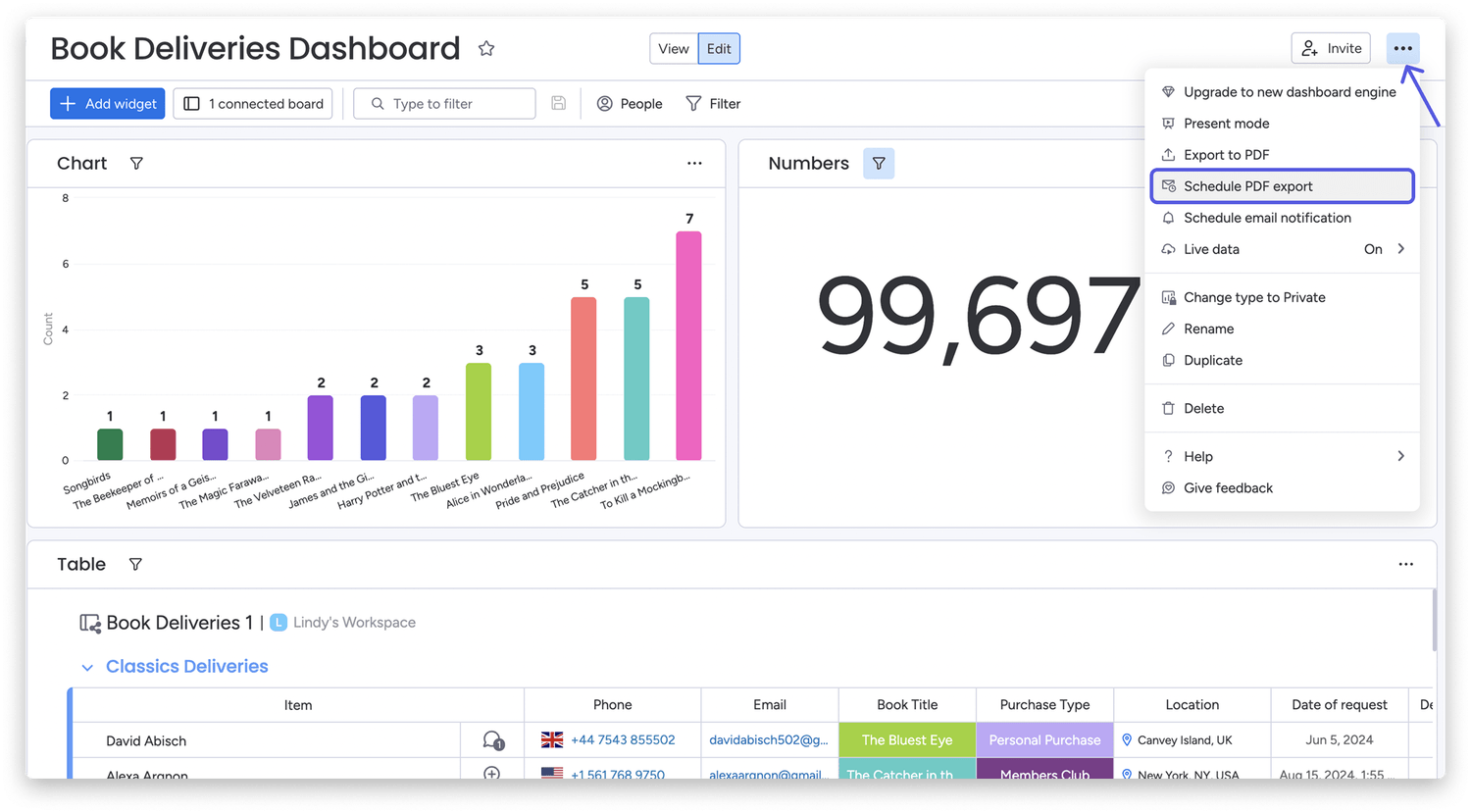
To create a scheduled PDF export, click on the three dots in the upper right-hand corner of your Dashboard and select "Schedule PDF export".
From the window that appears, you can decide who to send the PDF export to, add a "Subject line", and an "Email body" to accompany the export.
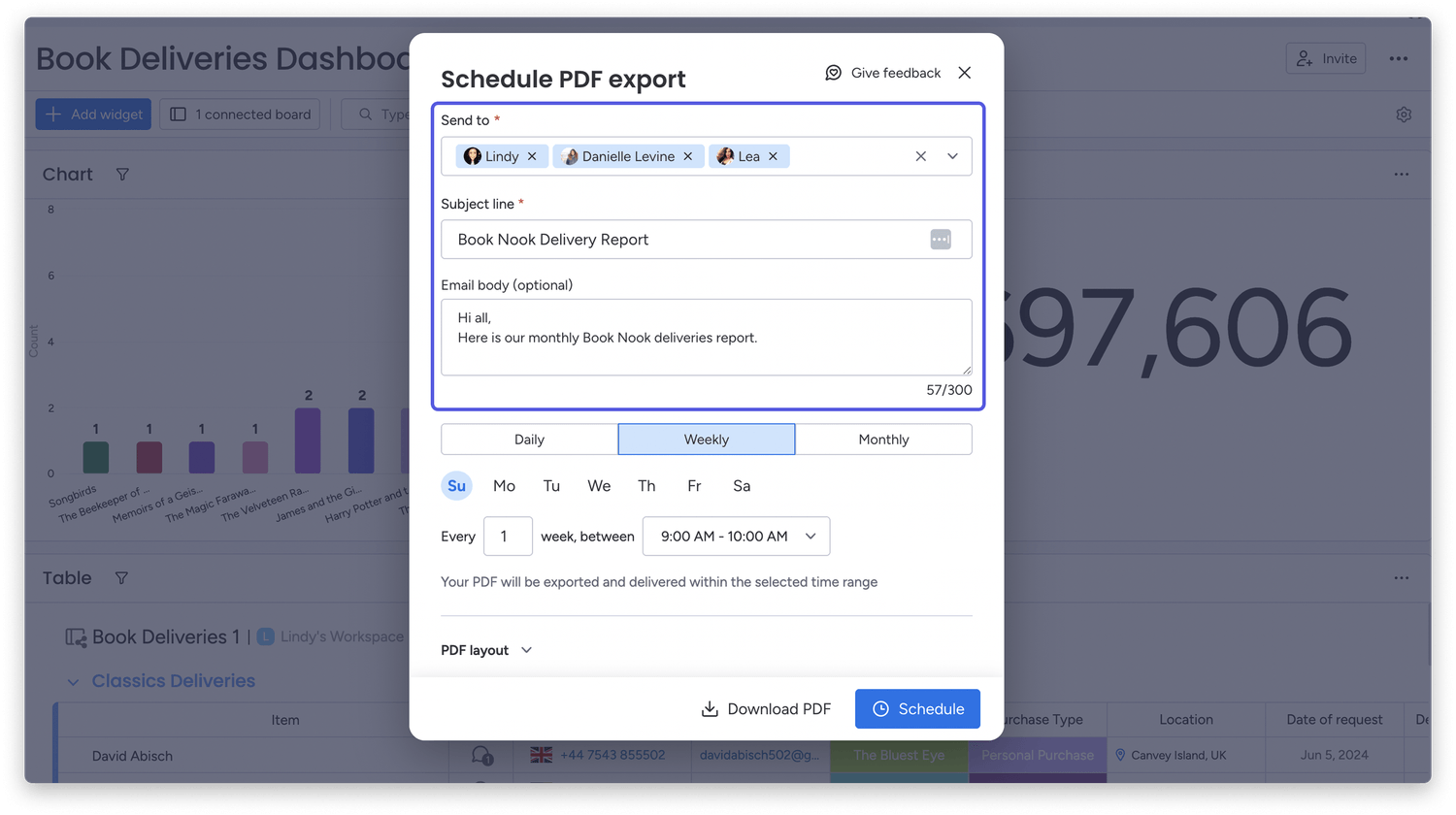
Wanting to share your Dashboard PDF with many colleagues? You can send your Scheduled PDF export to up to 50 recipients!
Choose a scheduling period
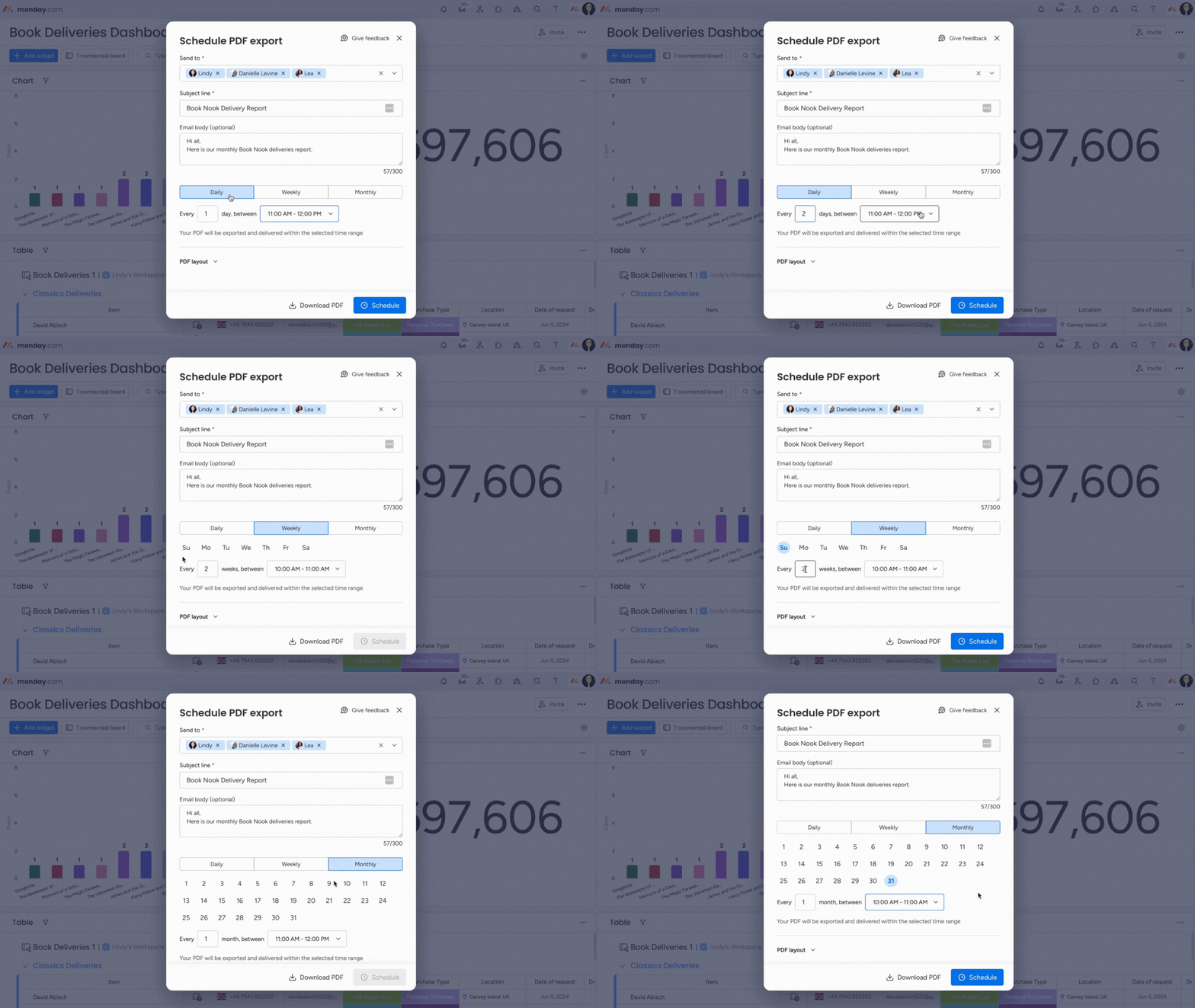
After setting up the recipient list and context of the export, you can decide how frequently you would like the export scheduled, either "Daily", "Weekly", or "Monthly", as well as the specific date and time of the export.
Note: If you reach your plan's limit of scheduled PDF exports, a window will appear asking you to upgrade your plan.
Adjust PDF layout
Once you've decided on when the PDF export will be sent, you can adjust the layout of the PDF by clicking on the drop-down arrow next to "PDF layout" and selecting between "Portrait" or "Landscape". You can also adjust the scale of the content on each page.
Delete a scheduled PDF
To delete a scheduled PDF export, return to the Schedule PDF export section from the three-dot menu in the top right-hand corner of your Dashboard, and select "Delete" in the bottom left-hand corner.
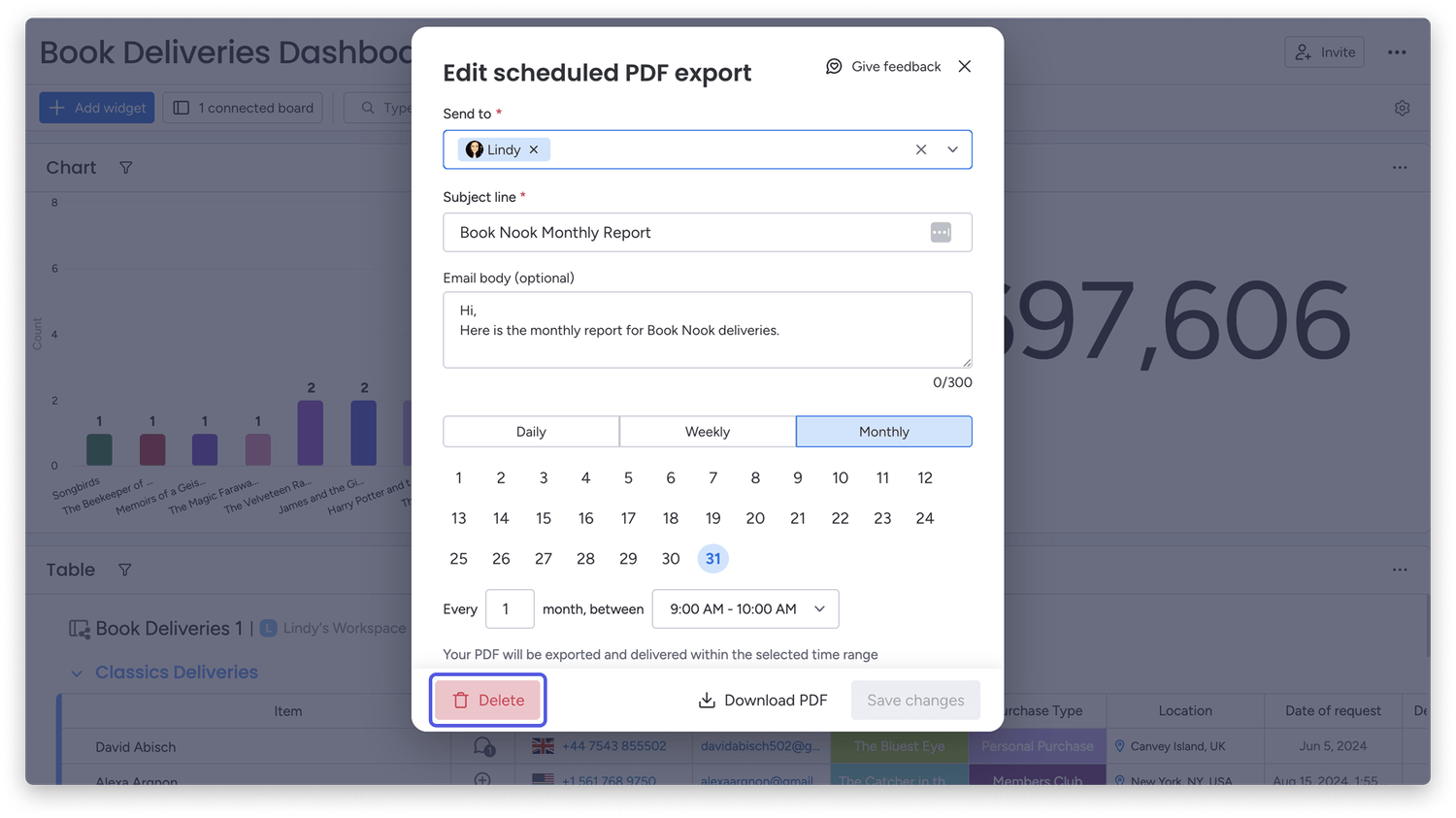
Note: Only one Dashboard owner per dashboard can schedule and delete a PDF export. All other dashboard owners can view who will receive the scheduled export.
Time frame of the export
The scheduled PDF export will be generated based on the user's board permissions and the latest filters set on the dashboard. For example, if the email is scheduled for 9:00 a.m., the PDF will start to generate at 9:00 a.m. and will be emailed when complete.
Note: The email with your scheduled PDF export should arrive within 30 minutes of the scheduled time. However, busy work hours and the timezone of the owner of this scheduled export might affect the timing of the export.
Schedule email notifications
You can schedule your dashboard to be sent periodically as an email! Click the three dots in the upper right-hand corner, and click "Schedule email notification".
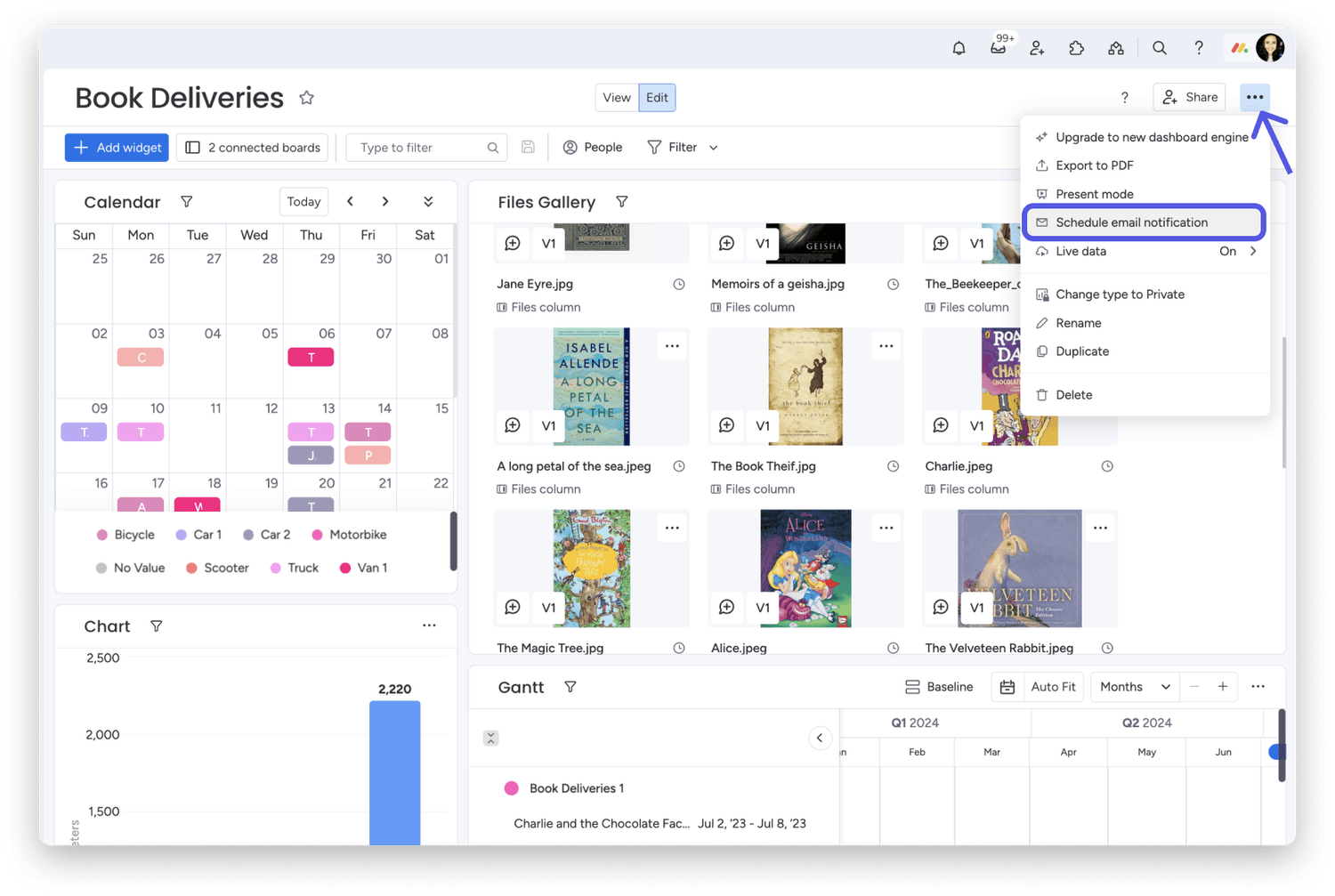
Note: This feature is available only to Enterprise users.
You can choose to send email notifications to all of your dashboard's subscribers, or you can manually select team members. Choose whether you want to send emails daily, weekly, or monthly, and set the exact day and time! When you're done, click "Schedule email".
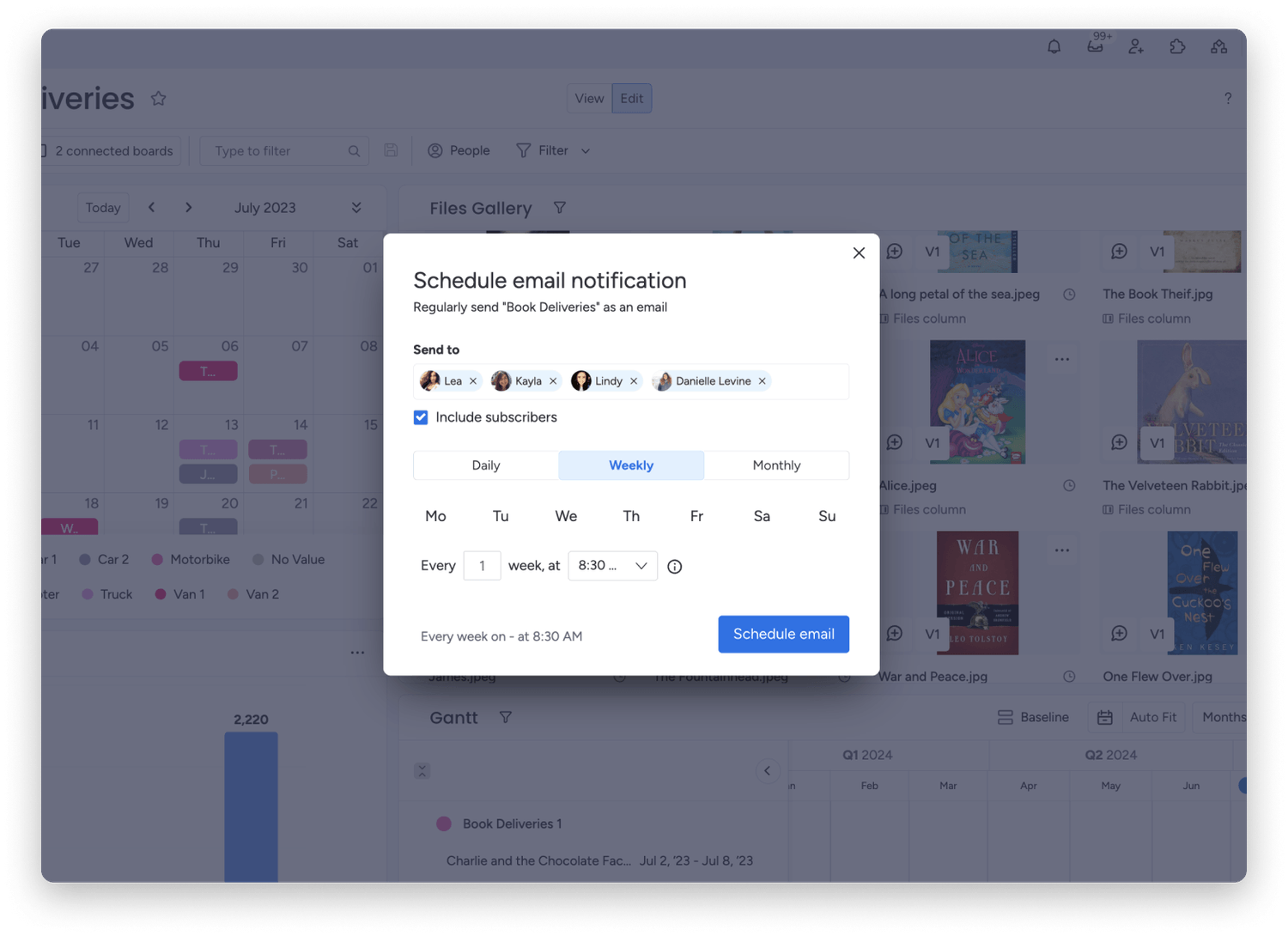
You can choose to send email notifications to all of your dashboard's subscribers, or you can manually select team members. Choose whether you want to send emails daily, weekly, or monthly, and set the exact day and time! When you're done, click "Schedule email".
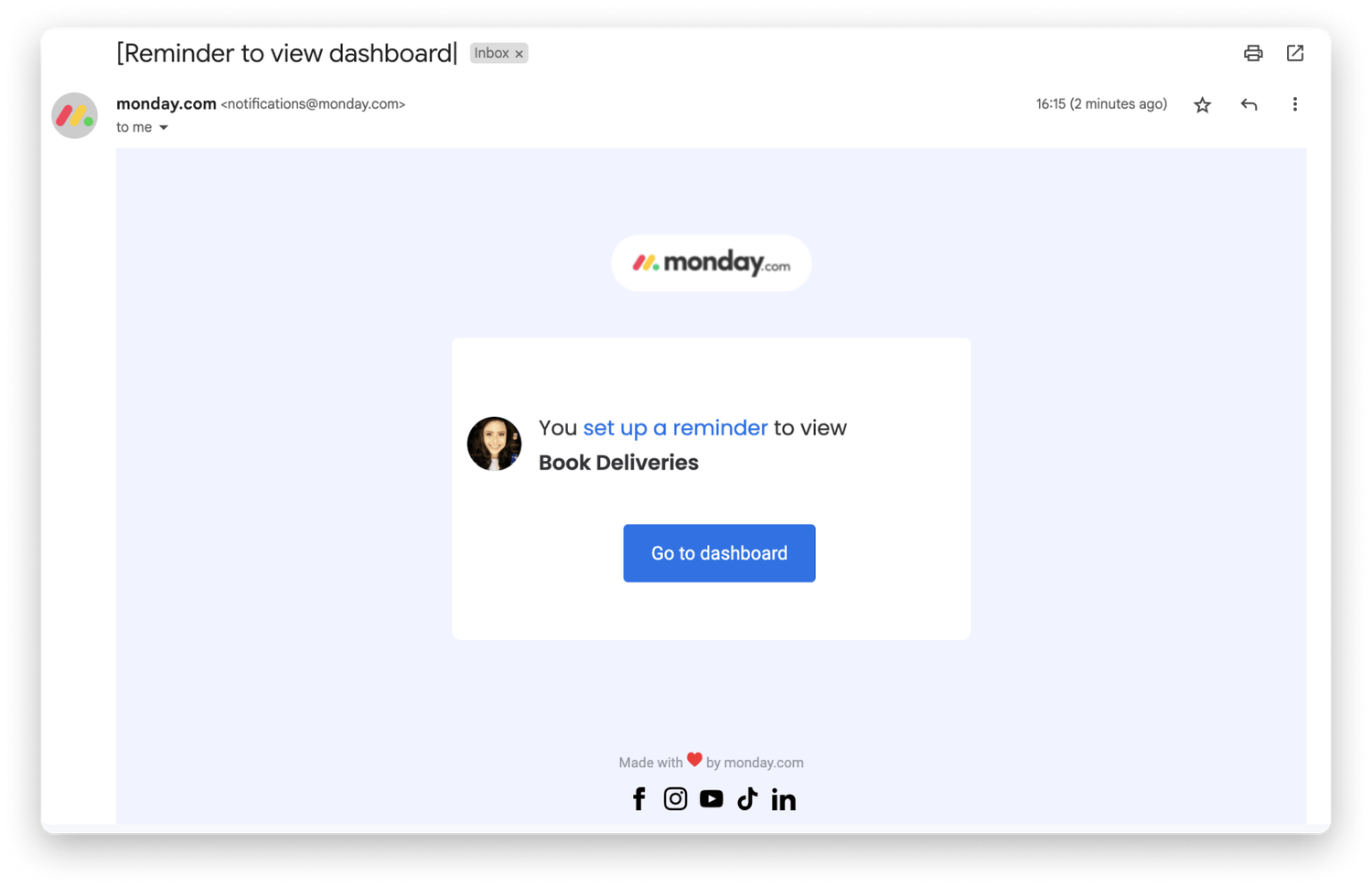
Present your Dashboard
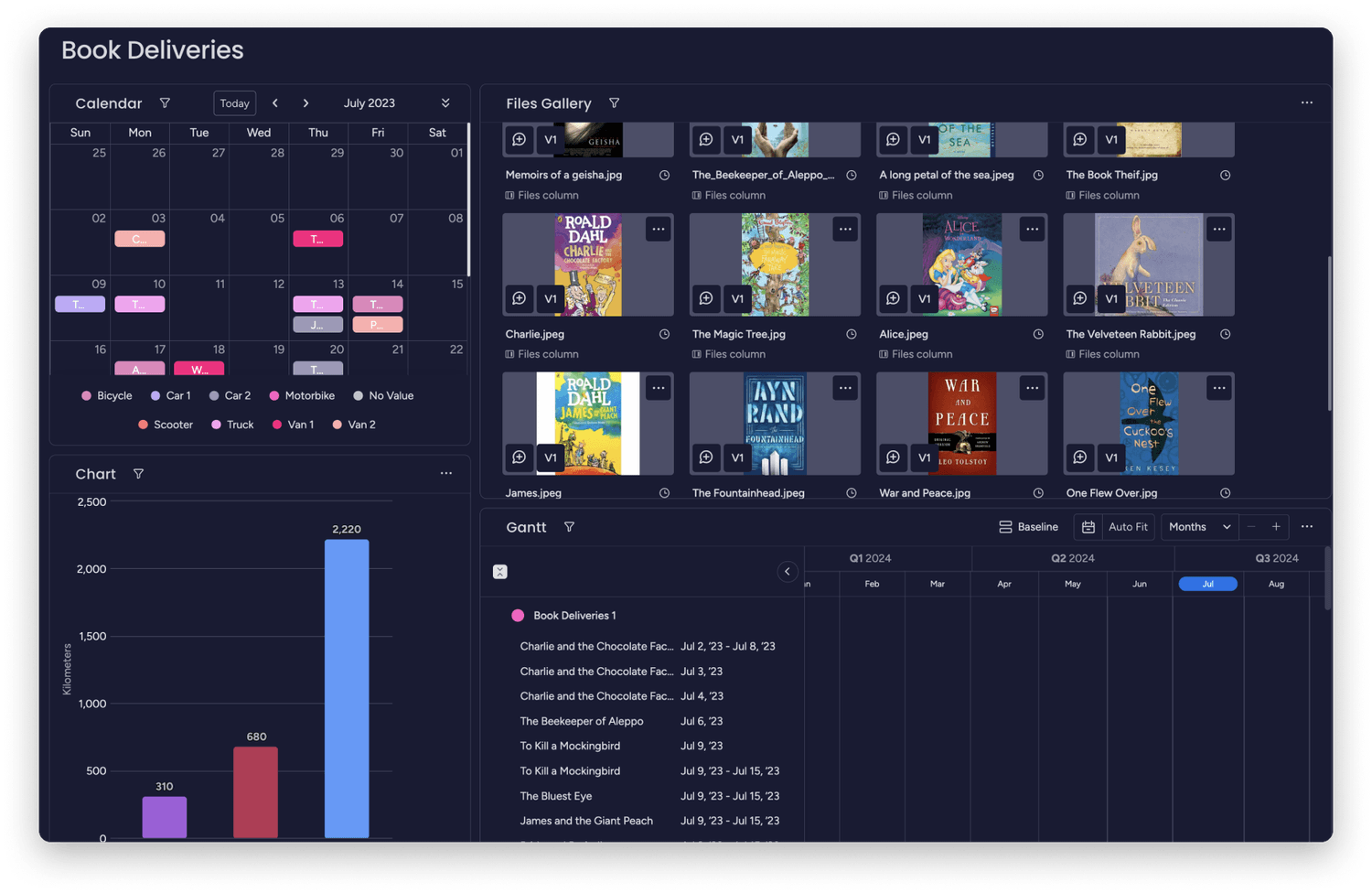
Multiple display options exist when presenting your Dashboard, including Present mode, Full screen mode, and Dark mode. These features let you tailor your viewing experience—whether you’re leading a meeting, focusing on a specific widget, or working in low-light environments.
Present mode
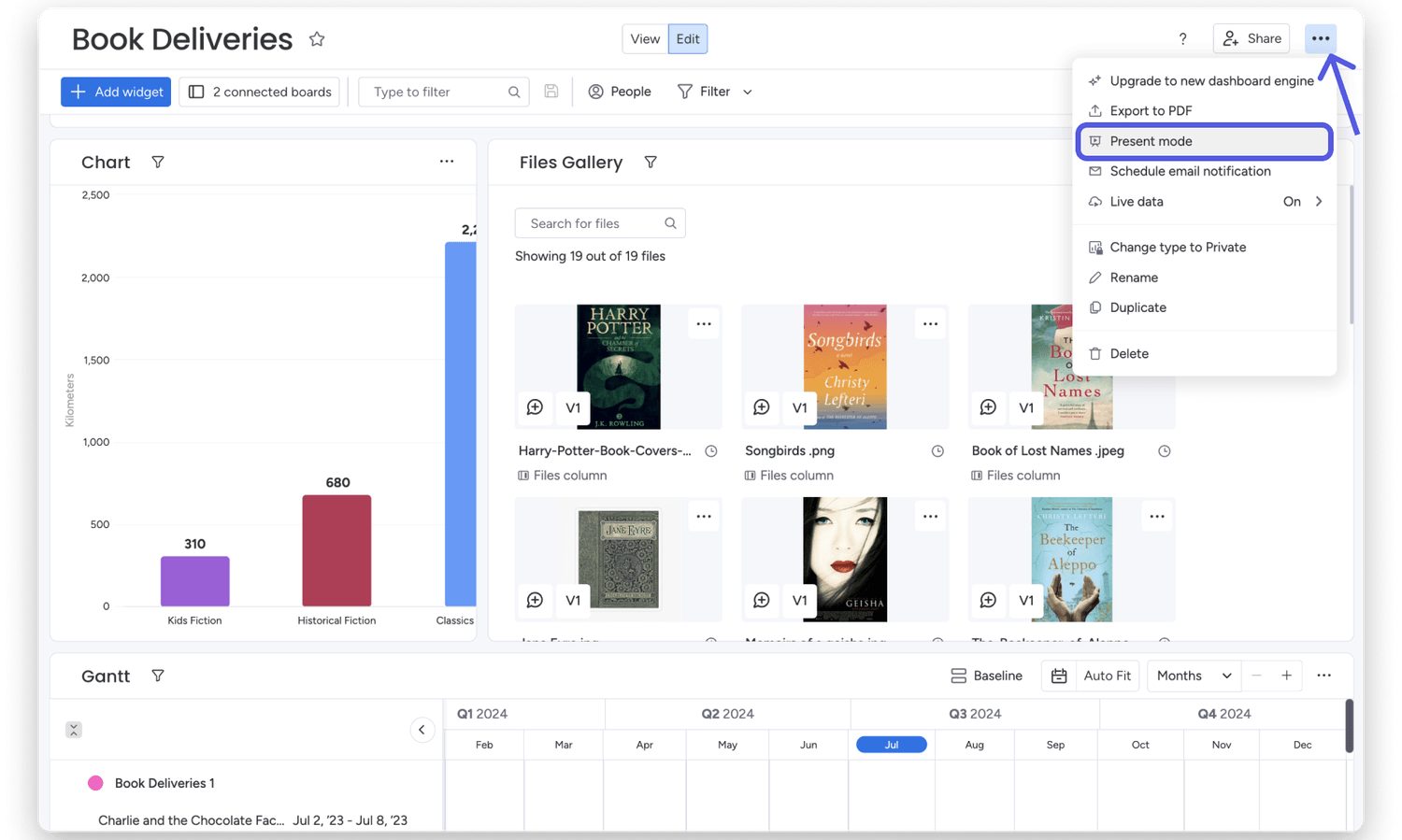
Present your dashboards in a sleek, presentation mode with "Present mode"! No more left pane, buttons, or icons. This setting is great if you'd like to display your dashboard on a TV or a bigger screen. Click on the three-dot menu in the upper right corner of your dashboard and select "Present mode":
Full screen mode
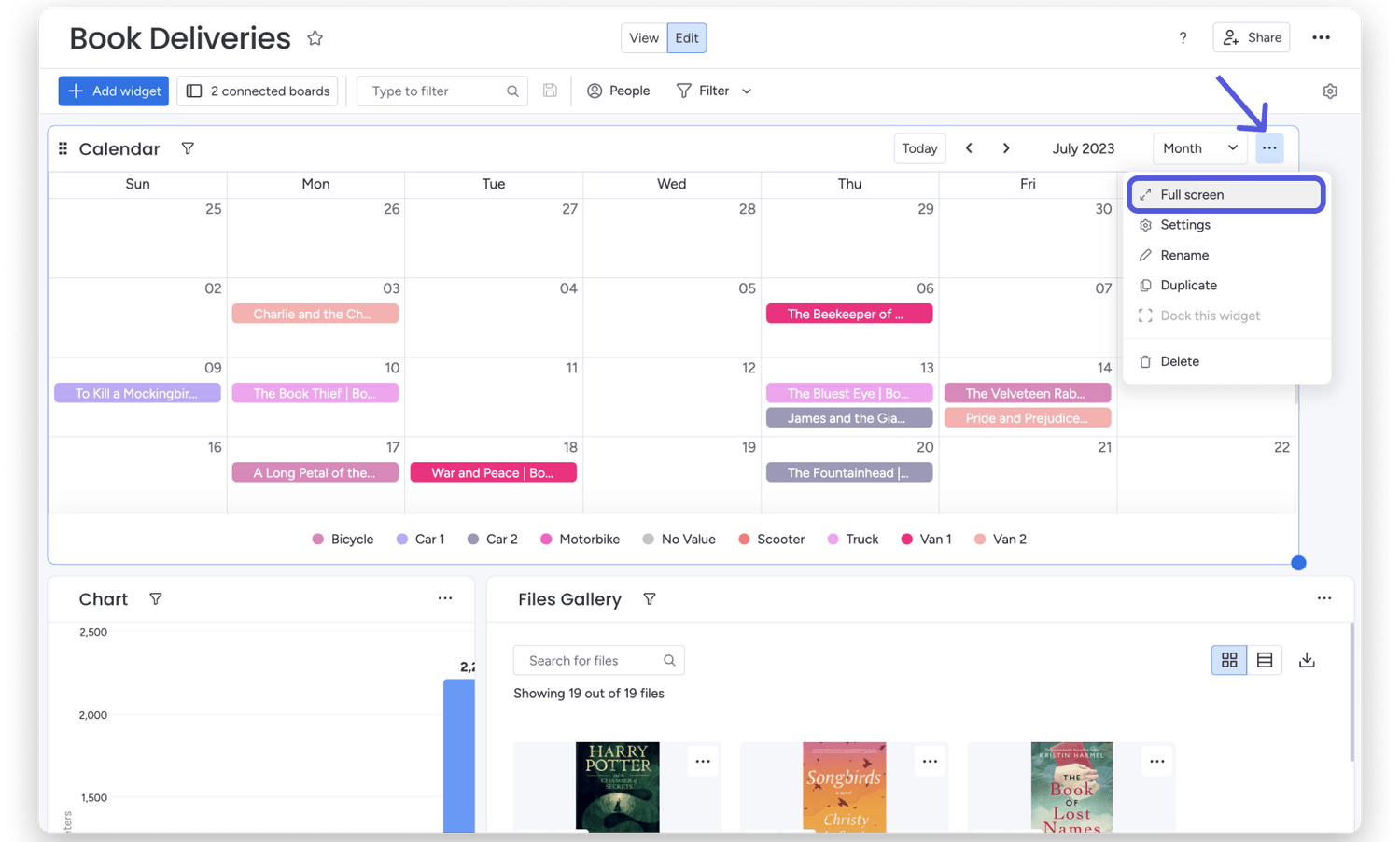
To view any individual widget in full-screen mode in your dashboard, click on the three-dot menu in the upper right corner of the widget and press "Full Screen":
Dark mode
We love our dashboards in dark mode! It's sleek, easy on the eyes, and really allows the colors to pop! While you can't turn on dark mode only for your dashboards, you can follow the two quick steps in this article to check out dark mode for your whole account, including your boards and views! You're going to love it as much as we do!
Create a Dashboard report
Using the power of AI, you can create a report of your Dashboard with just one click! Your Dashboard will be analyzed and summarized into a cohesive and succinct report within a monday workdoc, providing you with an overview of key metrics and data points.
Note: This feature is only available to Pro and Enterprise users.
To generate a Dashboard report, click the "Export" button at the top right corner, select "Generate report doc" from the dropdown list, and then select "Generate" from the window that appears.
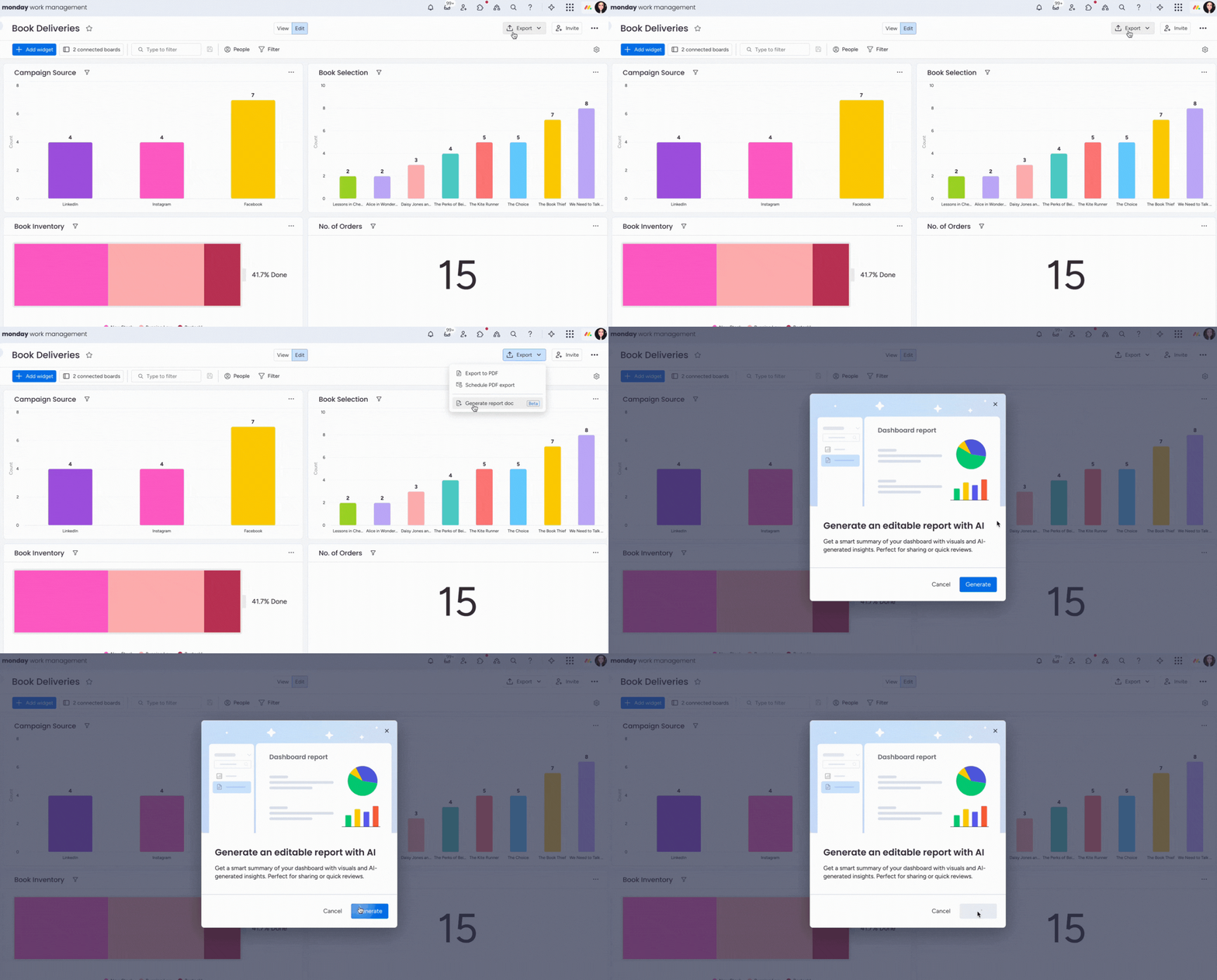
Once the report is generated, you will be redirected to the workdoc, where an explanation of the various widgets on your Dashboard will be provided. The name of the report will also contain the date it was generated, making it easy for you to keep track of the metrics based on when the report was created.
Note: This feature is also available for widgets in your board views 🤩
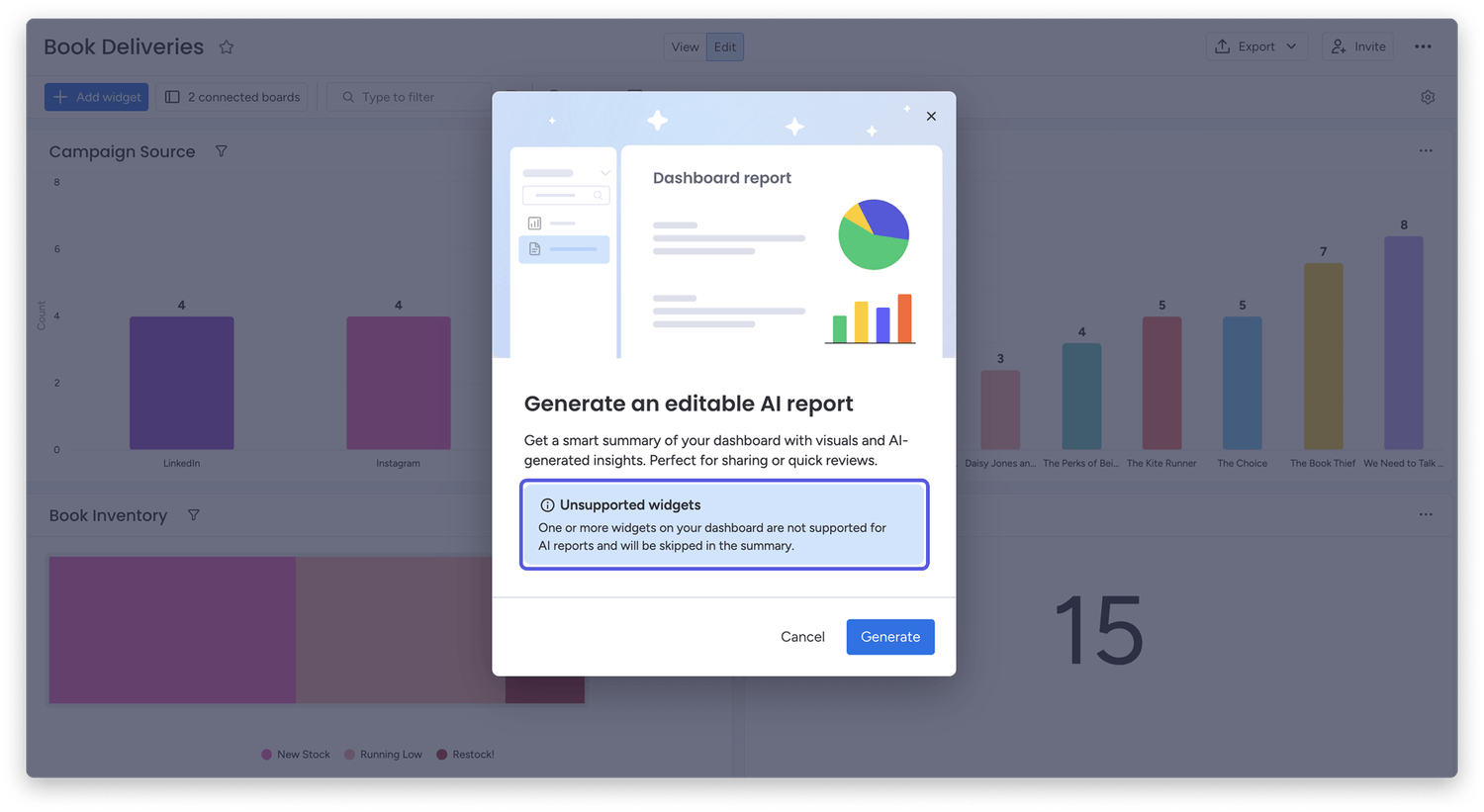
The report will not include insights for certain monday Apps, 3rd party widgets, the Text Widget, and the Embed Everything Widget. When these widgets are used in your dashboard, the following message will appear when you are generating a report:
The dashboard contains two or less widgets
The dashboard only contains text and numbers widgets
The dashboard has more than 50 widgets
The account does not have AI enabled
💡 Stay tuned for more updates in the future!
👉👉Start your free trial with us today: www.achievan.com/mondaydotcom
SHARE


Subscribe now.
Sign up for our newsletter to get the most interesting stories of the day straight to your inbox before everyone else
We help teams improve Productivity by implementing no-code software solutions
A Division of
Execute Strategy, Inc.
Connect with Us


Copyright © Execute Strategy Inc. O/A Achievan 2026