
monday.com New Features - How to Share Your Board View as a PDF
At monday.com, we love to make everything visual: colors, graphs, shapes, and more! For this reason, we came up with the amazing board views. The board views allow you to visualize your board's information in multiple different ways in order to analyze and report on your board data. 📊 📈 📉
How to add a view
To add a board view, click on the + icon located right below your board's title:
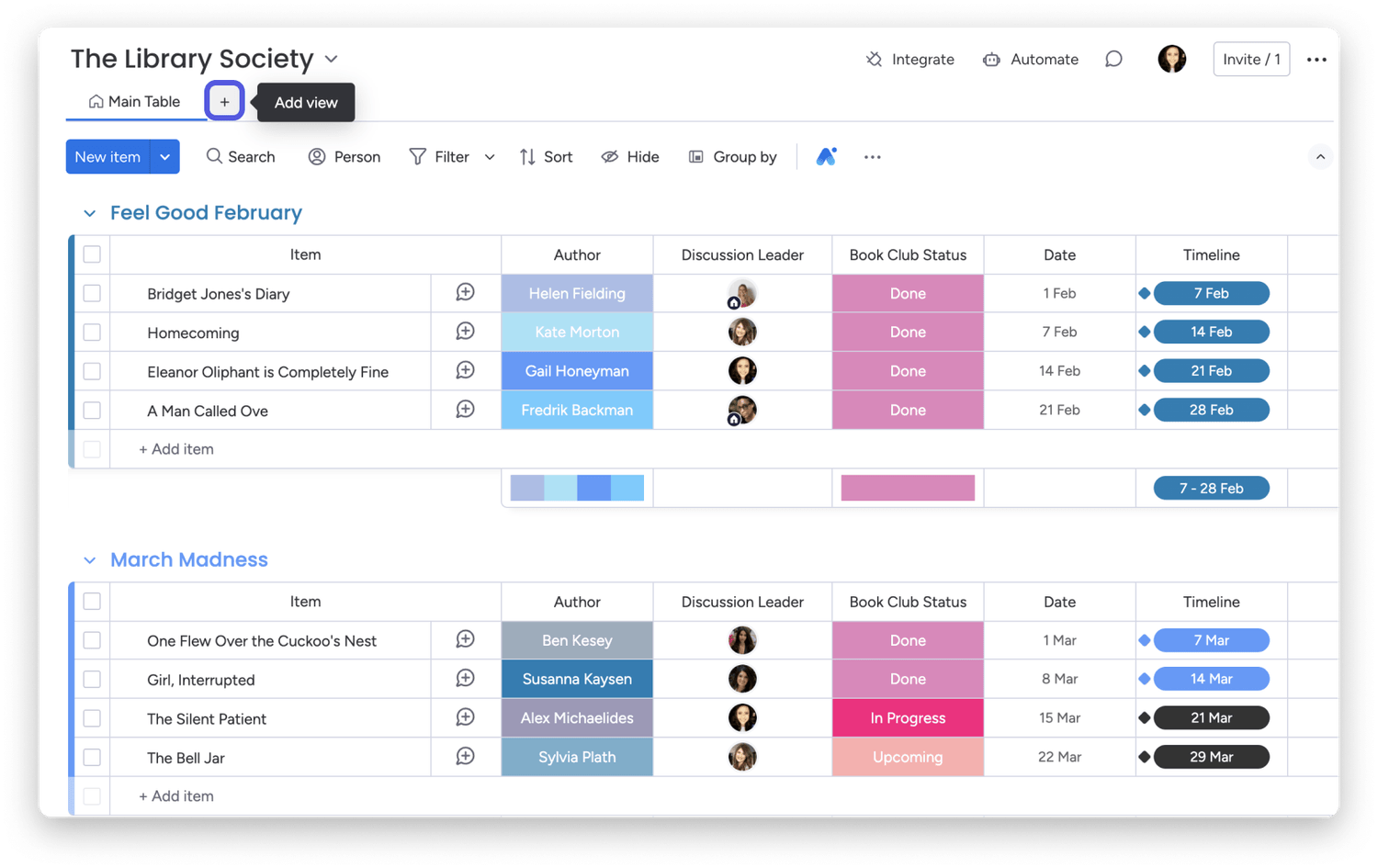
Clicking on "More views" will direct you to our Views Center where you can find all of the useful views options that we have to offer.
Blank
Table
Gantt
Timeline
Files Gallery
Map
Workload
Chart
Calendar
Form
Kanban
Cards
Pivot Boards
Tip: For more board view options, you can go to our Apps Marketplace and integrate one of the available apps as an additional view.
Switching between views
We offer the option to collapse the board header and access or add board views from one menu, so you can focus on what's most important, and to increase your work efficiency by avoiding unnecessary distractions.
Once you've added a view to your board, you can switch back to your main board view, or another board view, by selecting the dropdown arrow next to the board view name.
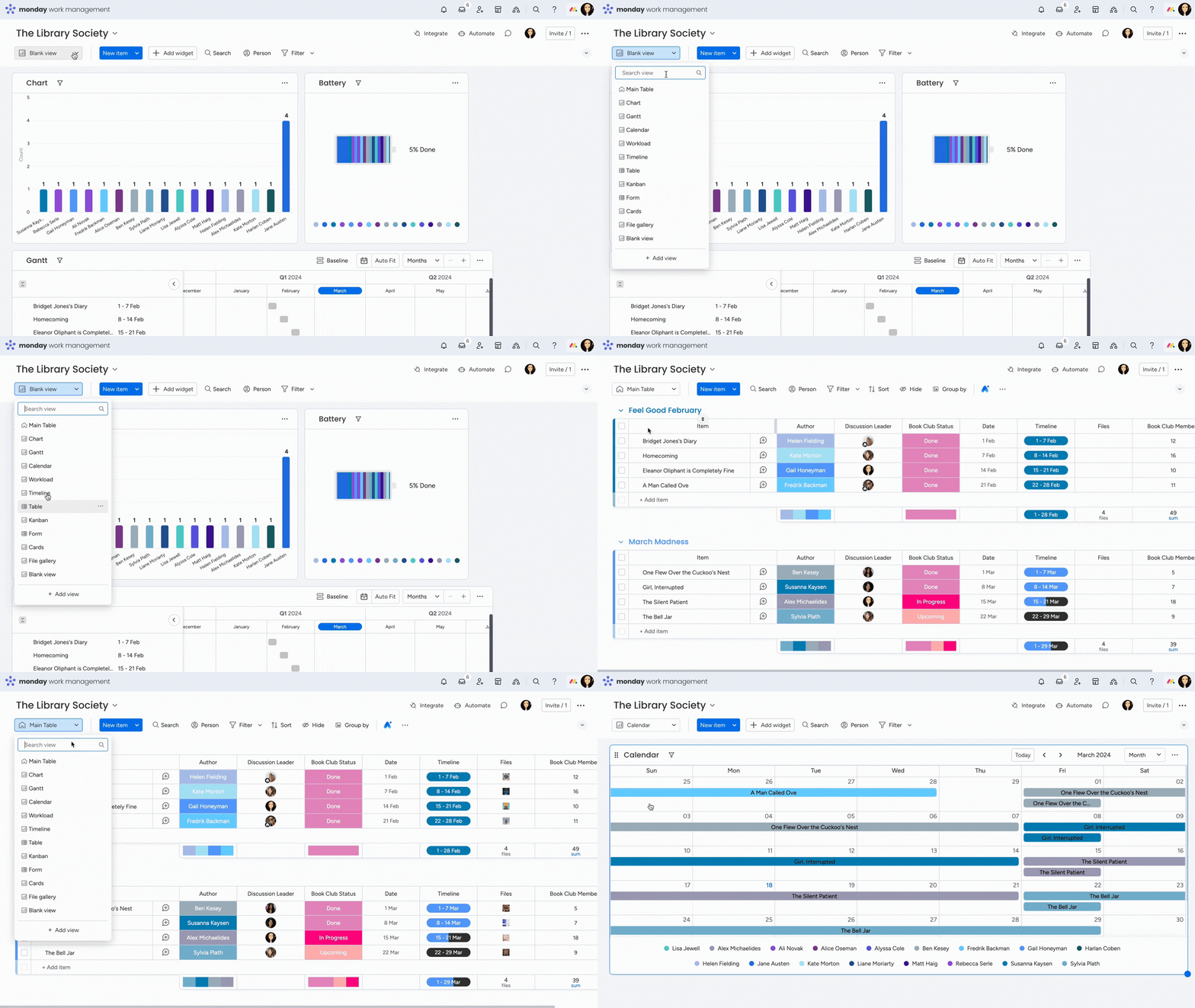
If you choose to expand the board header, your board views will appear as tabs at the top of your board. To expand the board header, click on the dropdown "arrow" icon to the right of your board header.
Tip: If you're looking to visualize data from multiple boards in one place, we recommend checking out our Dashboards article. 📊
Lock a view to prevent unwanted edits
Do you have a view that you worked hard on to filter to your specific needs? Did you set up a table view with specific configurations that you don't want others to mess with? Luckily, you can now lock a view that you created to prevent others from changing it!
Note: The ability to lock a view is only available on our Pro and Enterprise plans.
To do this, click on the three-dot menu to the right of a view that you created and select "Lock view". In the following screen, click on "Lock view" once again to confirm the change.
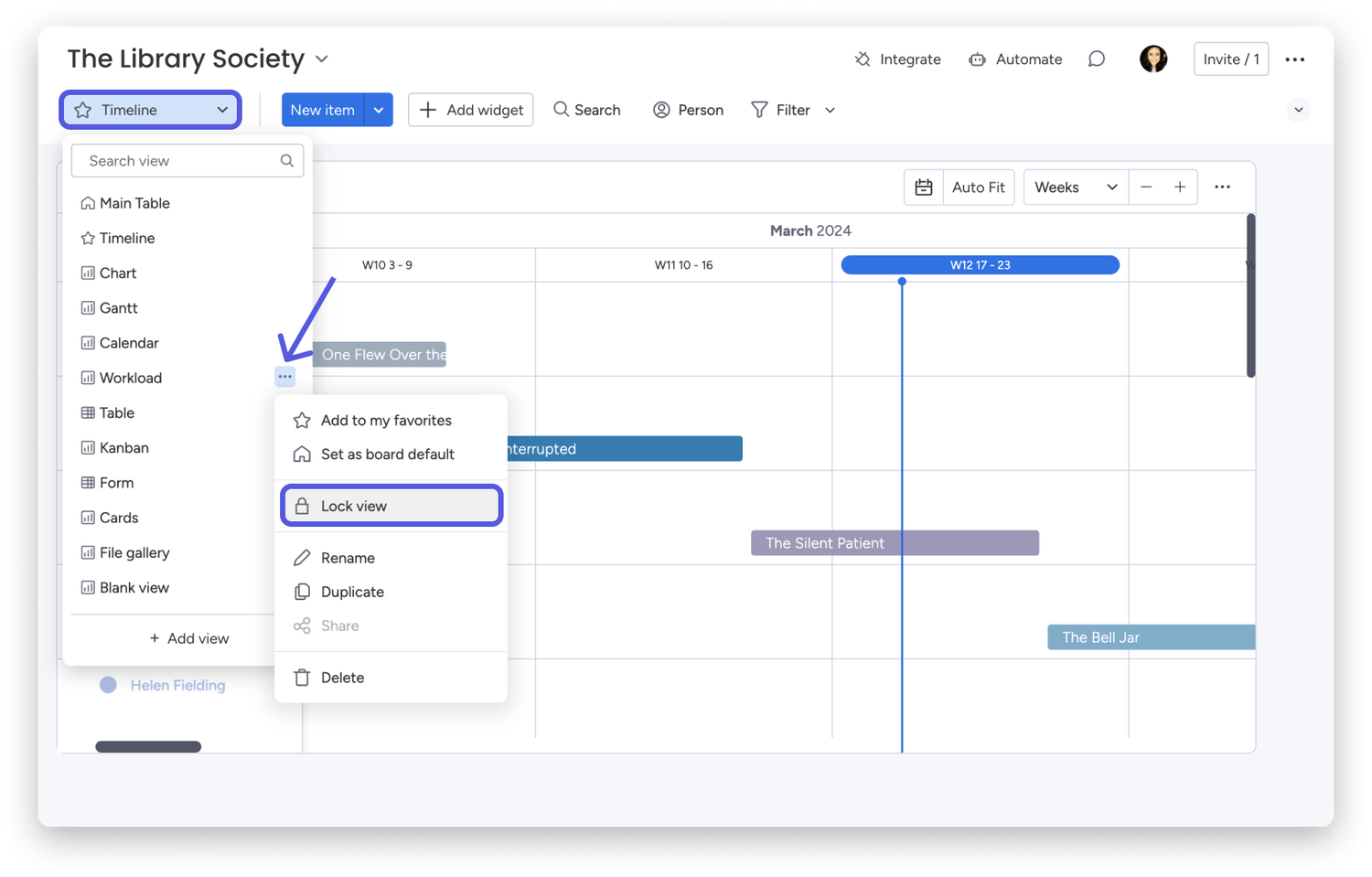
Note: All views are supported for locking aside from app views. Additionally, board owners and account admins will also have the ability to edit a view that you locked.
Pin your views
As the board owner, you have the option to pin multiple views in place, ensuring you see the important views immediately when opening up your board. To pin a board view, click on the view and select the three dots to the right off the views name. From the menu that appears, select "Pin view".
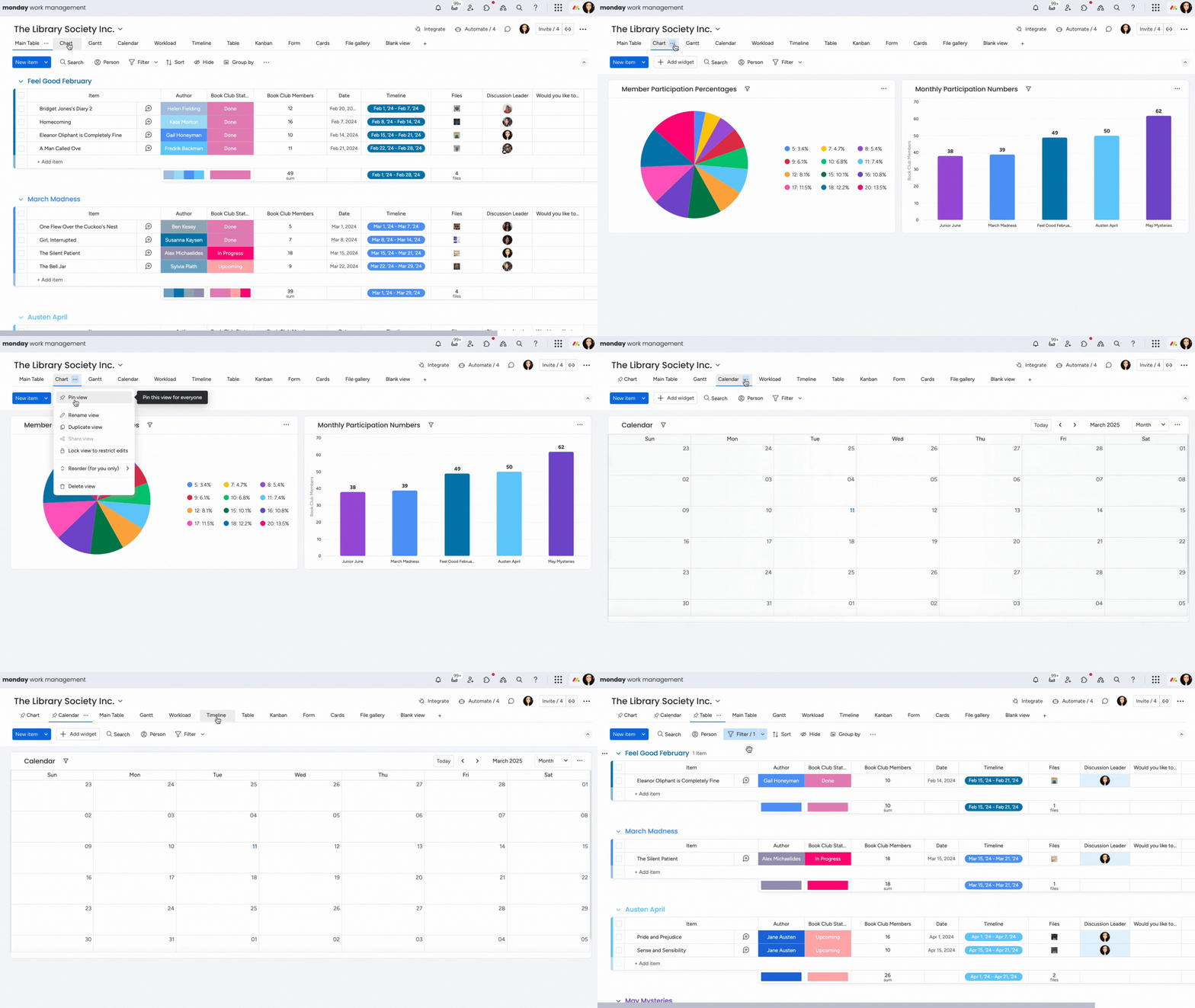
To unpin a view, follow the same steps as above, and select "Unpin view" from the dropdown menu.
You can move pinned views around amongst other pinned views, but not between the views that have not been pinned. Once these views are pinned other board members will not be able to reorder those pinned views.
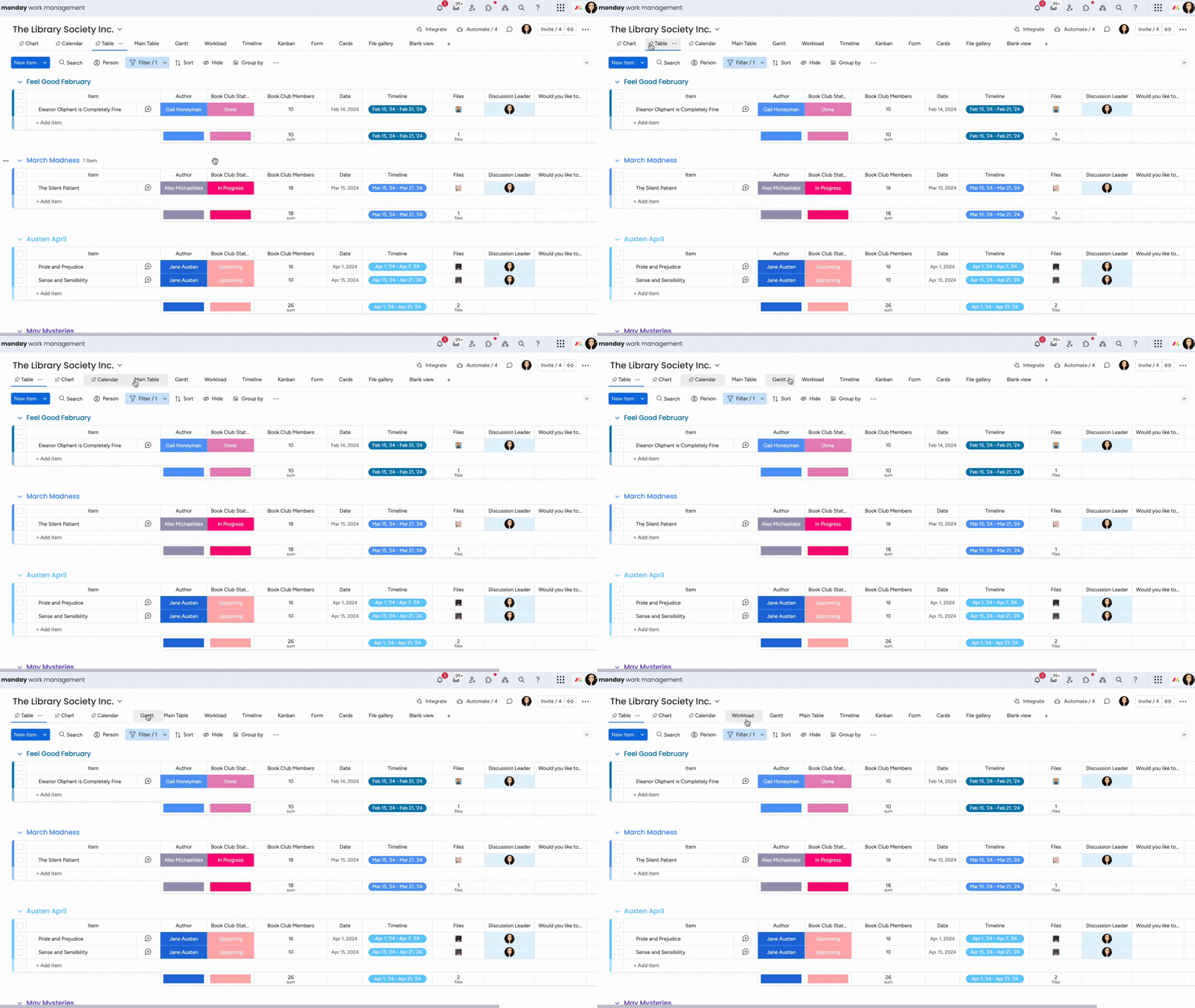
Note: Only board owners can pin views on the board. If you are not the owner of that board, you will not see the option to pin a view.
Reorder your views
Each team member can customize the order of their board views to fit their personal preferences, creating a fully tailored workflow order. To rearrange your views, simply drag and drop them where you'd like.
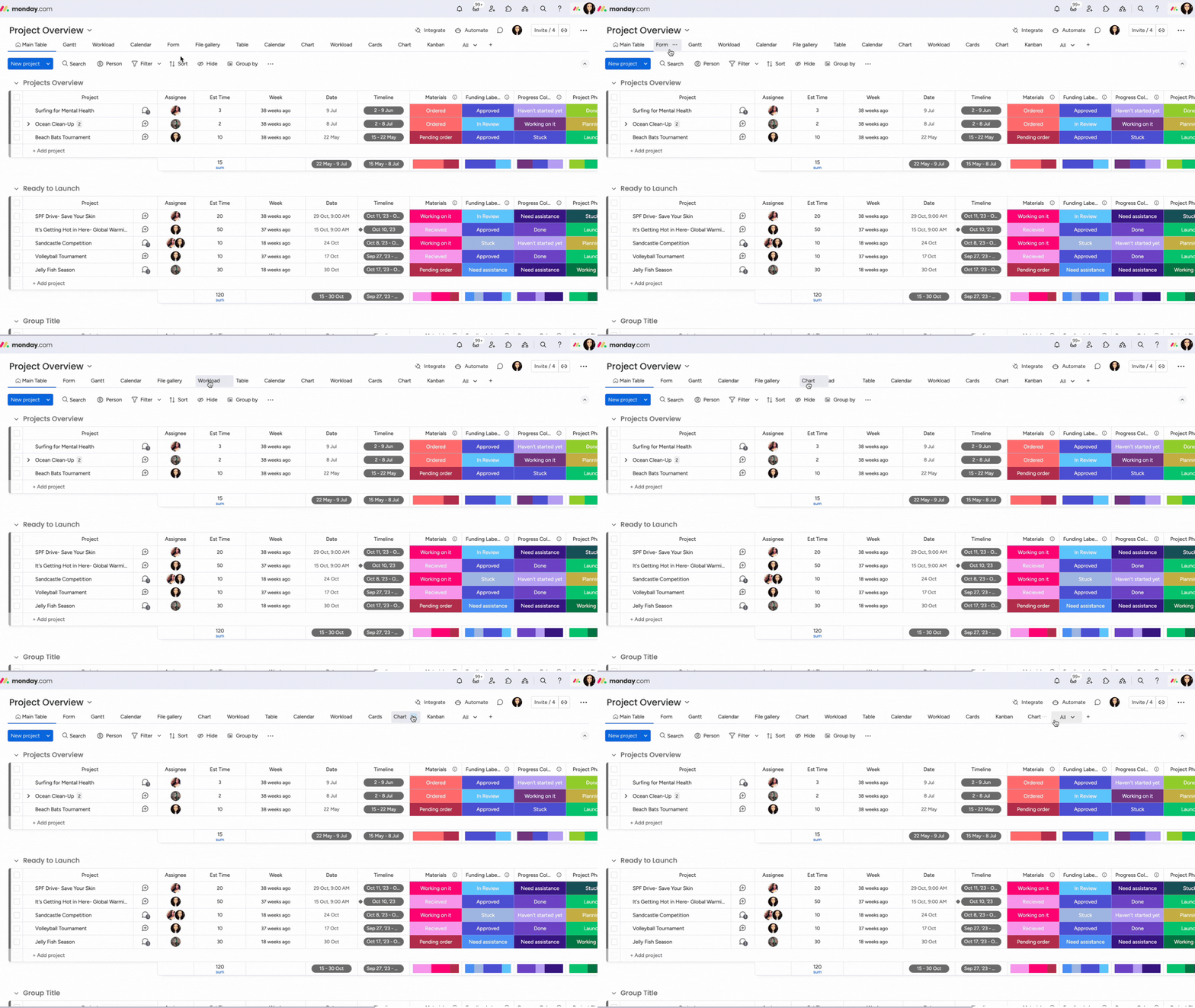
You can also reorder your views using the views dropdown for a quick adjustment.
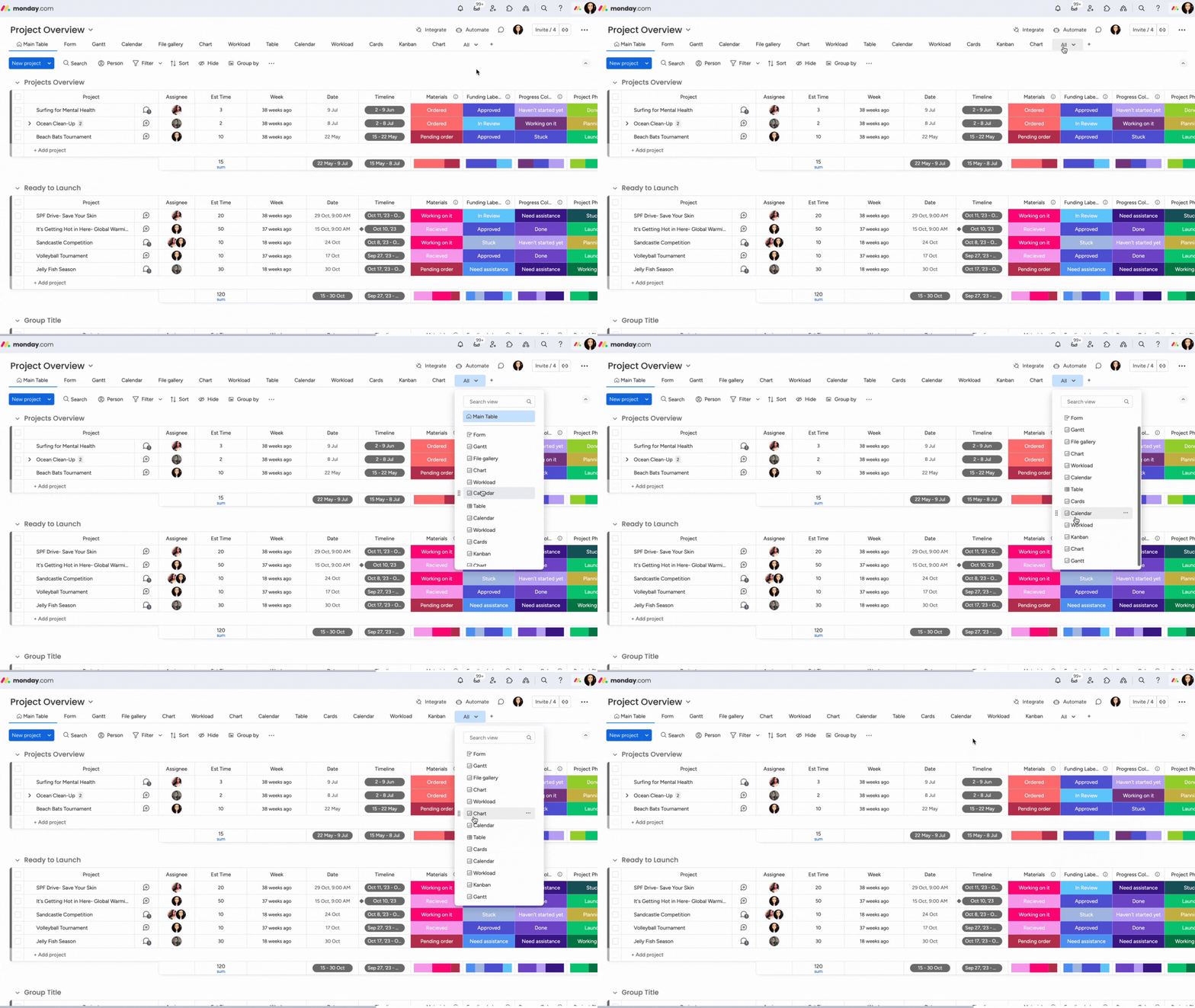
Note: Once you've arranged your views in the way you like, the order will remain the same until you decide to change it. View order is saved individually, so each team member can maintain their own unique arrangement.
Sharing views publicly
Publish your boards, embed them in your website, and make them accessible to everyone on the web!
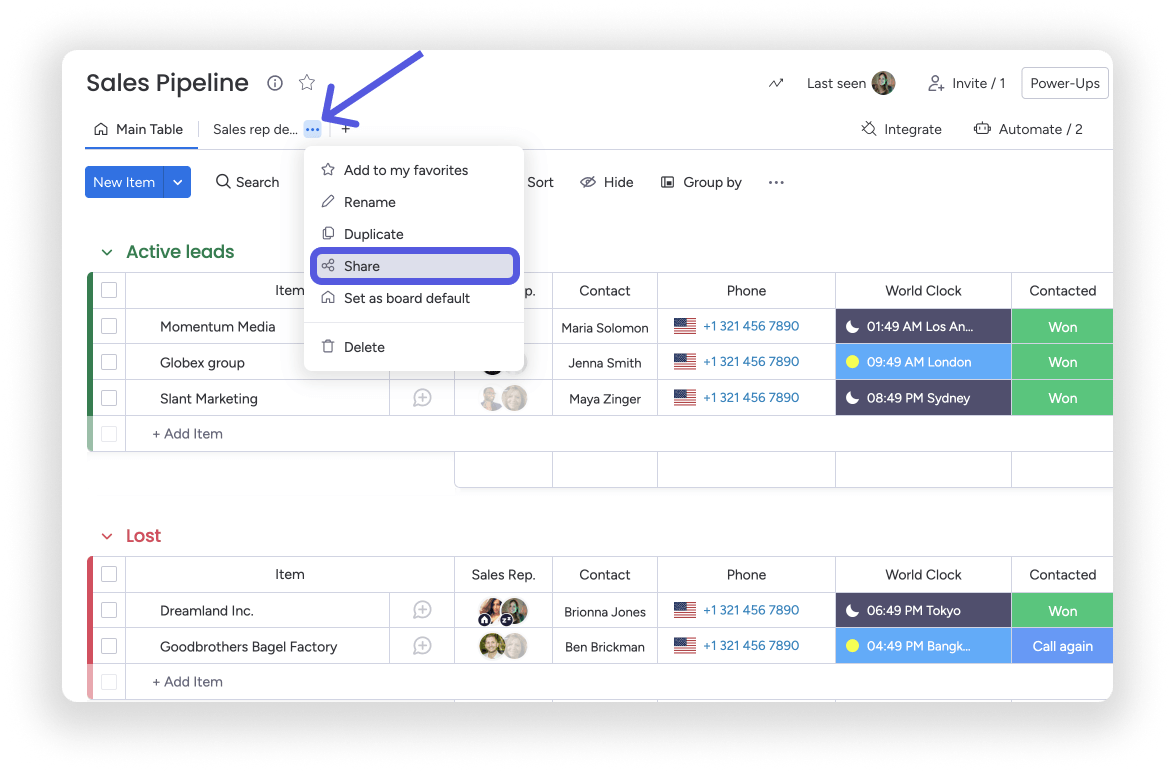
Note: The three-dot menu on the View tab will only appear when you are in that view. To access the menu for another view that you are not in, right-click on the view tab.
Export your board views
Easily share the current state of your board view with colleagues by exporting your widgets to a PDF document!
PDF export
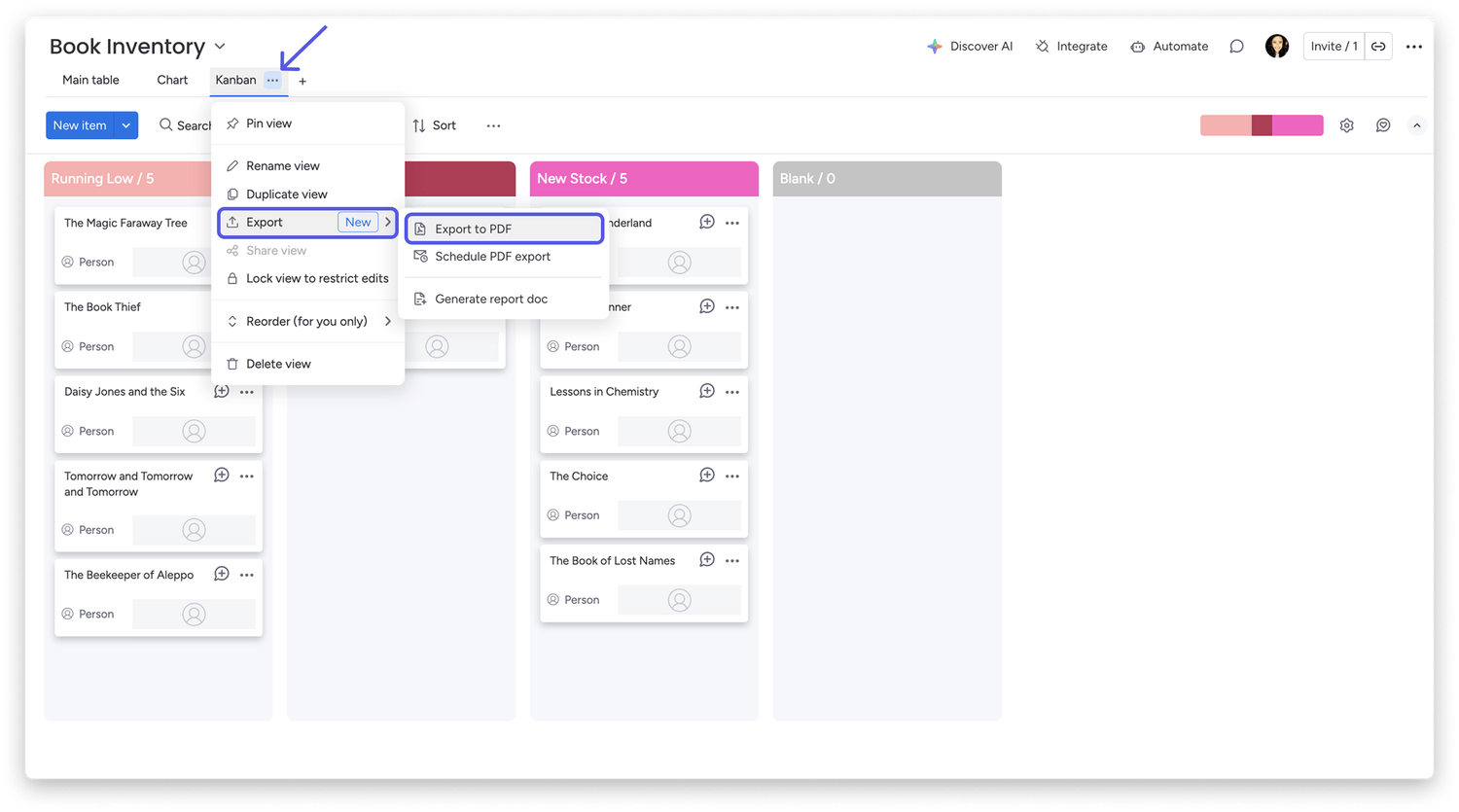
To export your board view as a PDF, click on the three dots next to its name, hover over "Export," and select "Export to PDF" from the list that appears.
Schedule an export
You can also create a scheduled export of your board view to ensure timely insights into your board's data! Click on the three dots to the right of the board view's name, hover over "Export," and select "Schedule PDF export" from the list that appears.
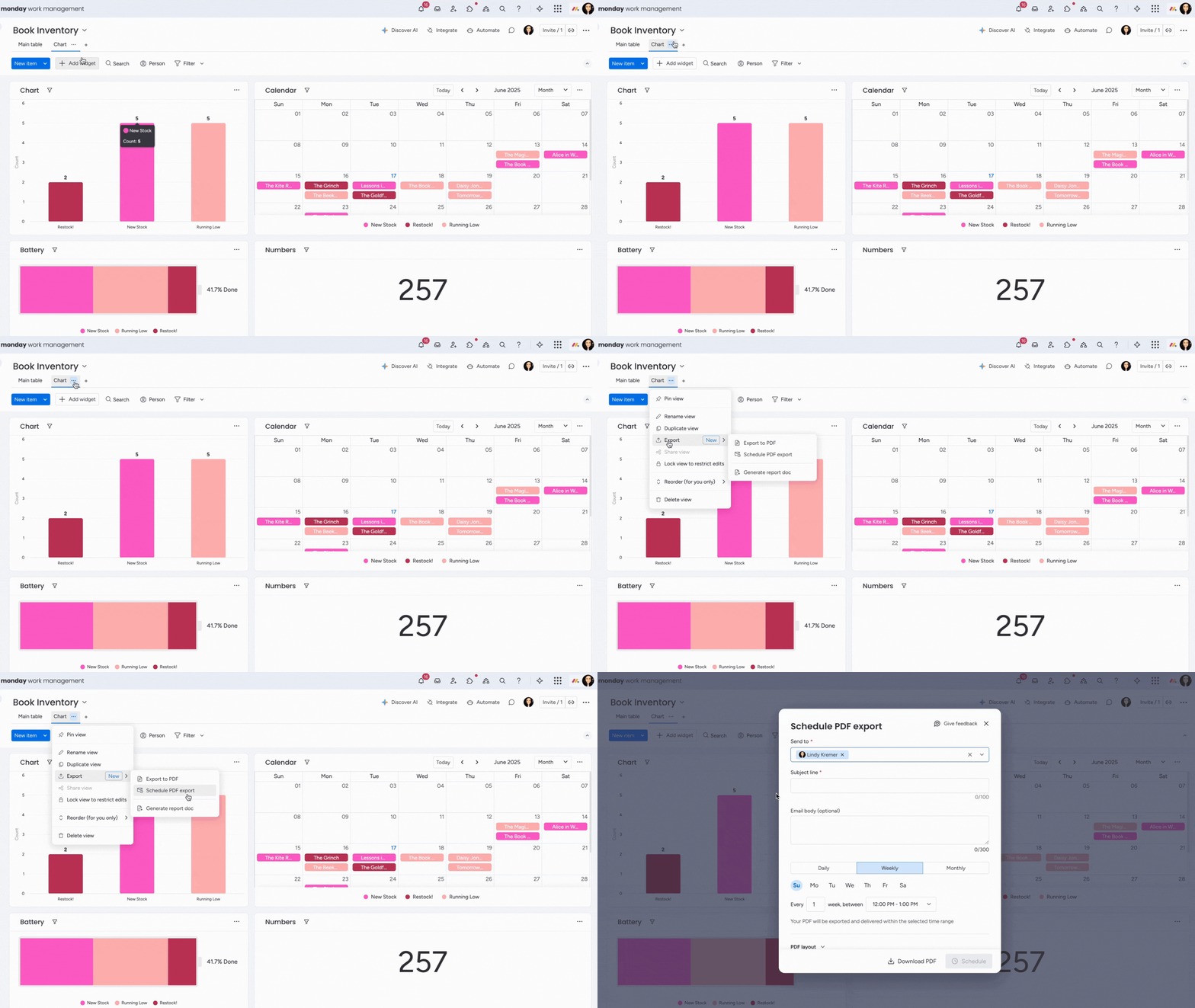
From the window that appears, you can fill out the details attached to your export, such as which team members to send the export to, the subject line, description, the scheduled date of the export, and the layout of the PDF. Once you've filled out all the details, click on the "Schedule" button in the bottom right-hand corner.
Restoring deleted views
You can easily reinstate a deleted board view through your activity log. To find the activity log, click on your profile image at the top right-hand side of your board. This will open up the activity log for that particular board, displaying all the changes and updates made on the board. From here, you can select the "Undo" button next to your deleted view.
💡 Stay tuned for more updates in the future!
👉👉Start your free trial with us today: www.achievan.com/mondaydotcom
SHARE


Subscribe now.
Sign up for our newsletter to get the most interesting stories of the day straight to your inbox before everyone else
We help teams improve Productivity by implementing no-code software solutions
A Division of
Execute Strategy, Inc.
Connect with Us


Copyright © Execute Strategy Inc. O/A Achievan 2026