
monday.com Just Made Resource Planning a Whole Lot Smarter
If you've ever tried to plan project capacity while mentally accounting for who's on vacation, which team is in a different time zone, or which region observes different public holidays — you know the pain. monday.com's new Resource Schedules and Time Off feature is built to take that guesswork off your plate entirely.
This one is available on Pro and Enterprise plans, and it's a meaningful upgrade for anyone managing teams across projects.
What Changed — and Why It Matters
Previously, work schedules and time off were bundled together under a single schedule setting. That meant making changes to one often affected the other, and it was harder to get a clean picture of true resource availability.
monday.com has now separated these into three independent layers per resource:
Work Schedule — which days and hours someone works each week
Holiday Schedule (Company Time Off) — public holidays and custom company-wide dates
Personal Time Off (PTO) — individual absences like vacation and sick days
Each layer is managed separately, which means you can update a team member's PTO without touching their work schedule, or roll out a new regional holiday calendar without disrupting anything else. That kind of flexibility is what good capacity planning actually requires.
Already using work schedules? Your data wasn't lost. Everything was migrated automatically when monday.com made this change.
How to Set It Up
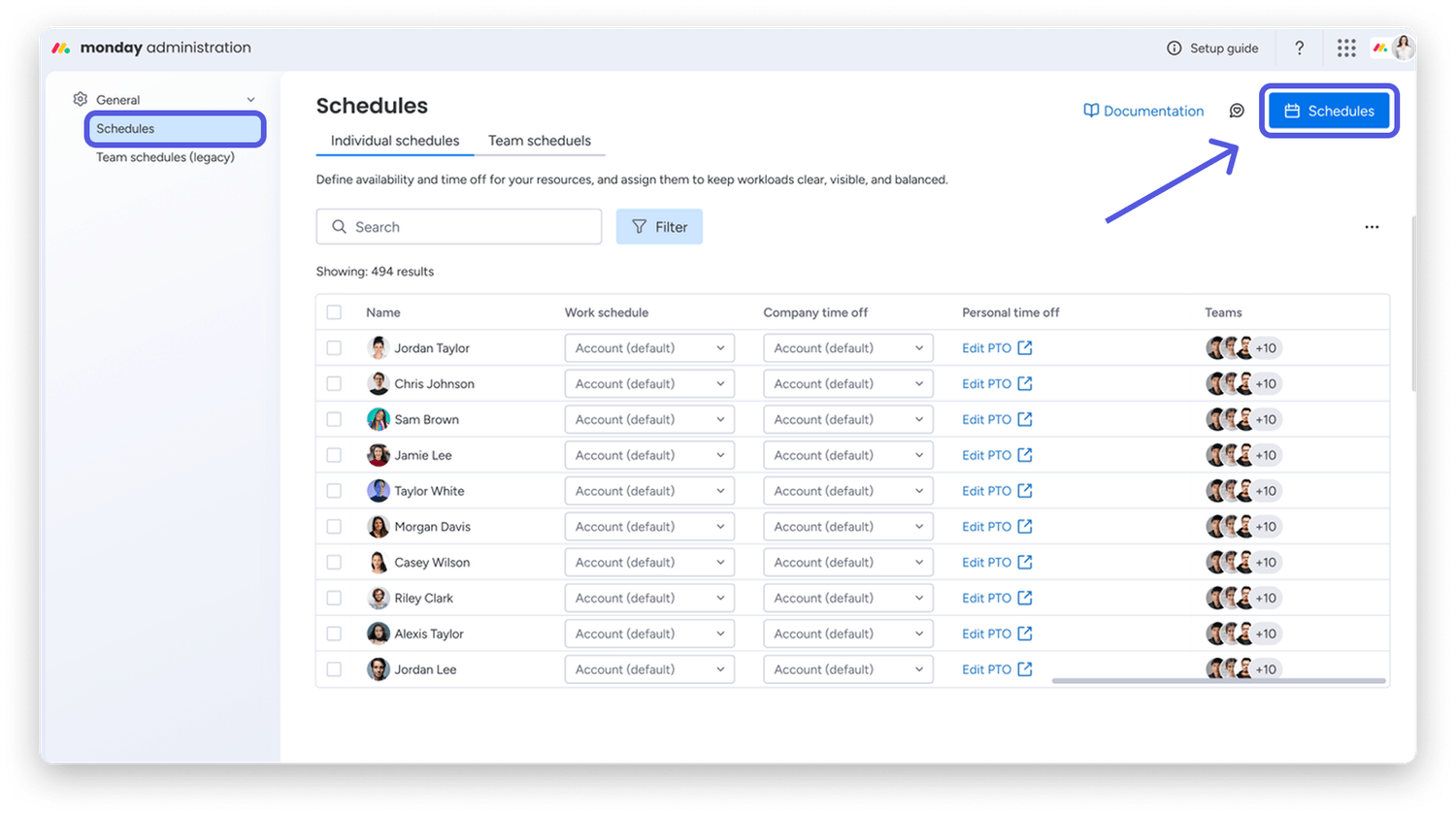
Getting started is straightforward. From your profile picture in the top right, go to Administration → General → Schedules.
Creating a Work Schedule
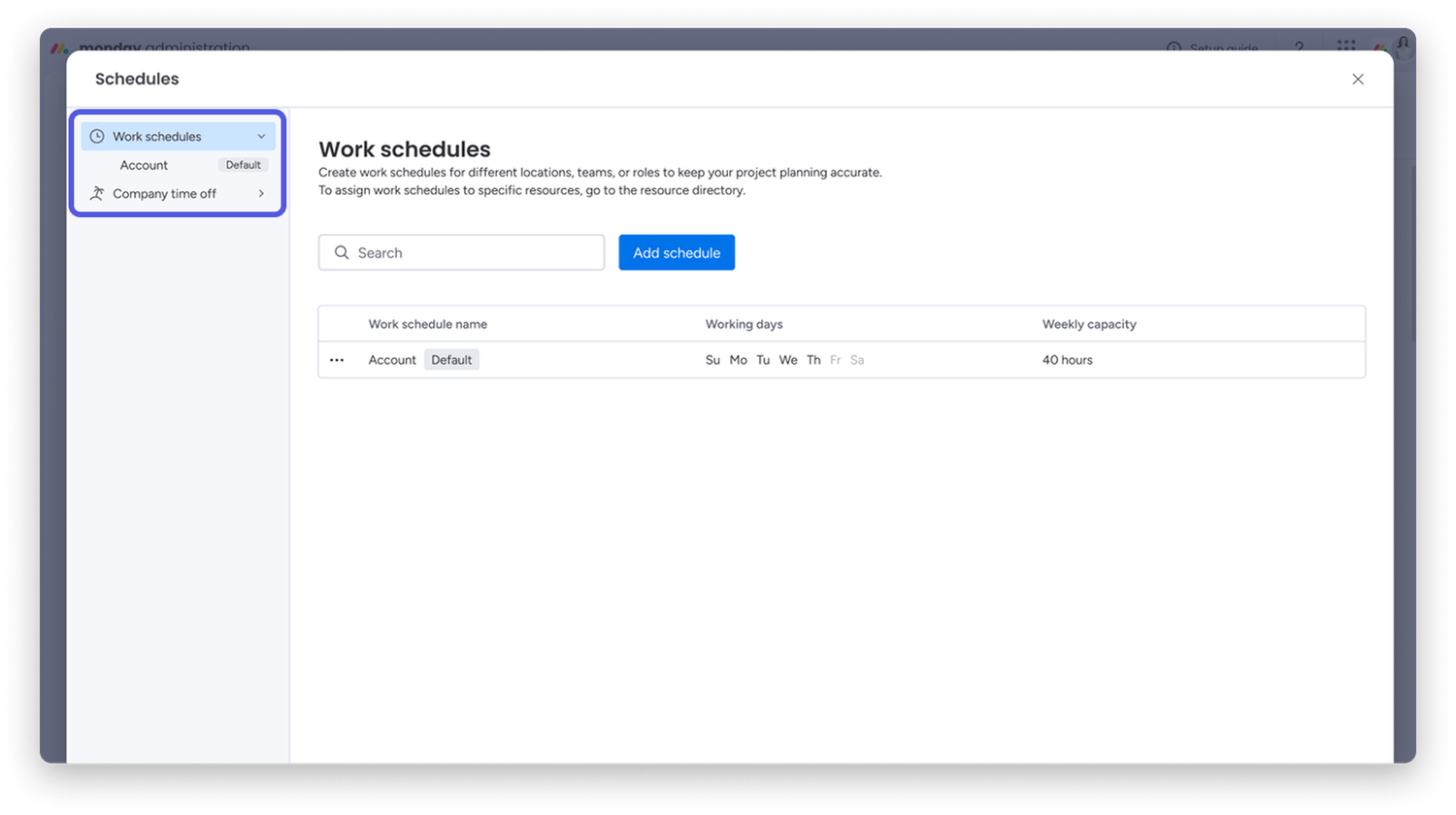
Click Schedules in the top right, select Work Schedules in the left sidebar, then hit Add Schedule.
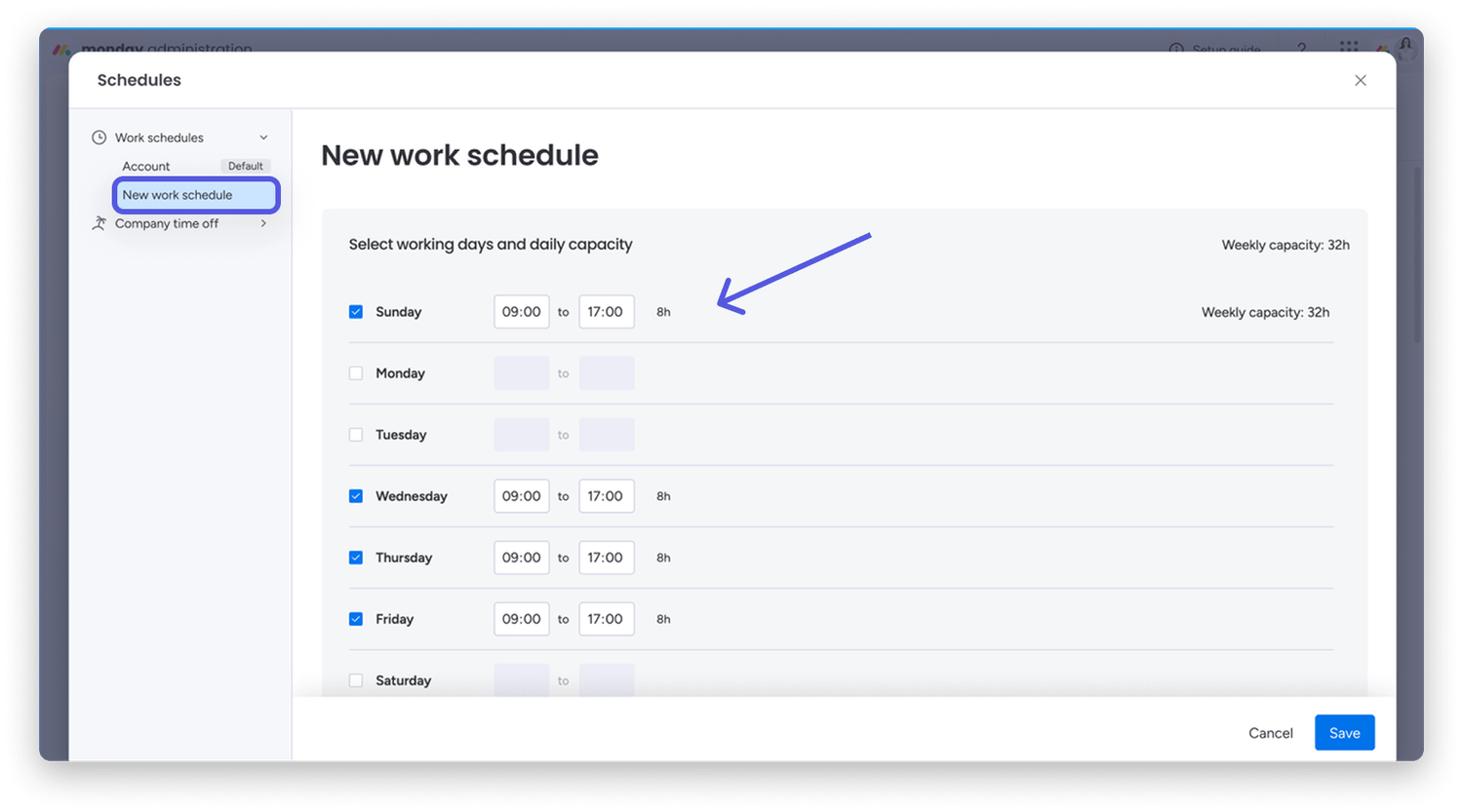
Choose the working days, set start and end hours for each active day, and save. monday.com calculates weekly capacity automatically based on your inputs.
Creating a Holiday Schedule
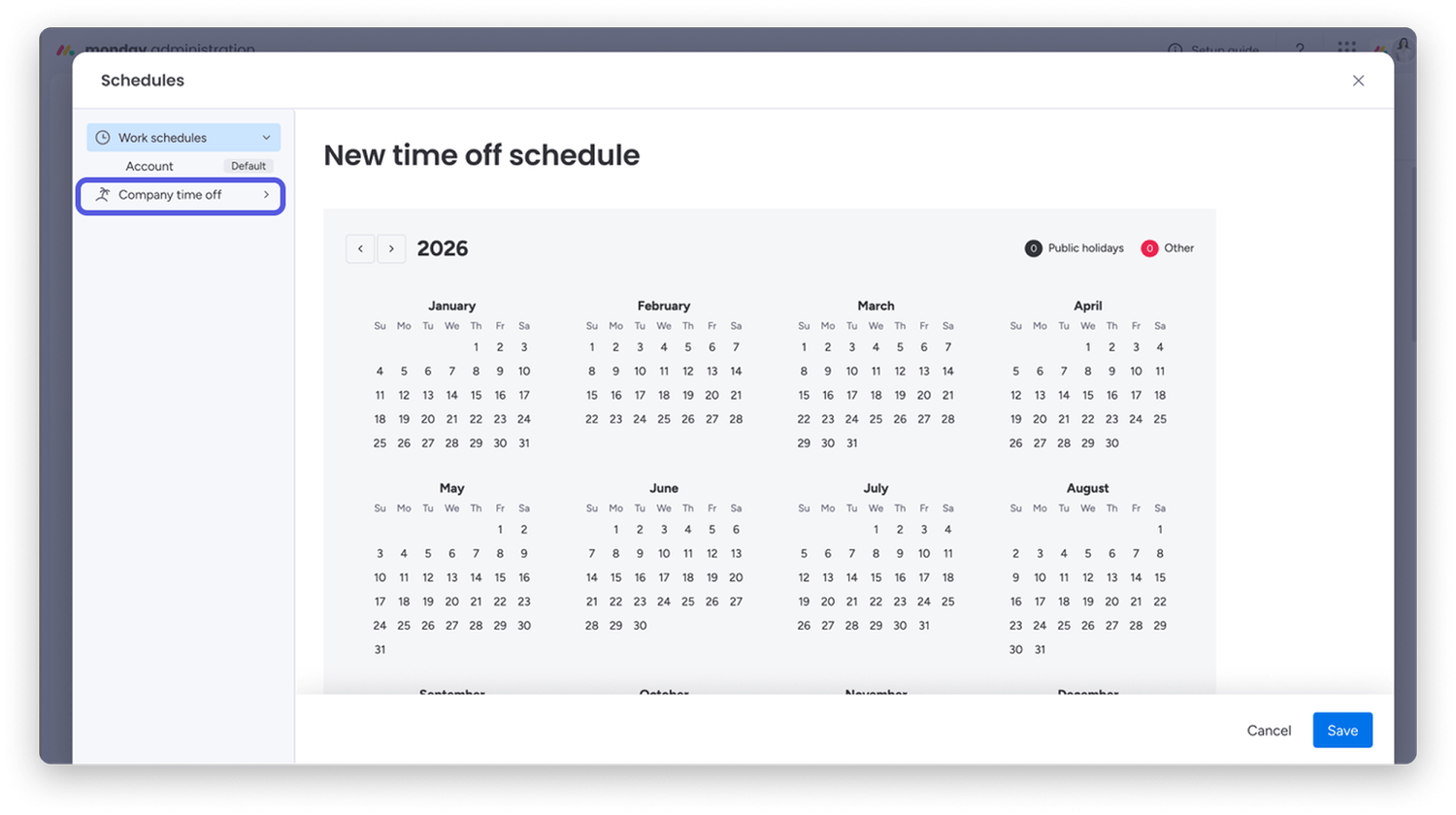
Select Company Time Off in the left sidebar and click Add Schedule. You can mark public holidays or add custom dates on the calendar — great for offices that observe regional or country-specific holidays.
Assigning Schedules to Your Team
From the main Schedules page, you can see every resource alongside their currently assigned work schedule, holiday schedule, and team membership. Use the search bar or filters to find who you need, select up to 100 resources at once, and assign the right schedules in bulk using the dropdowns on each row.
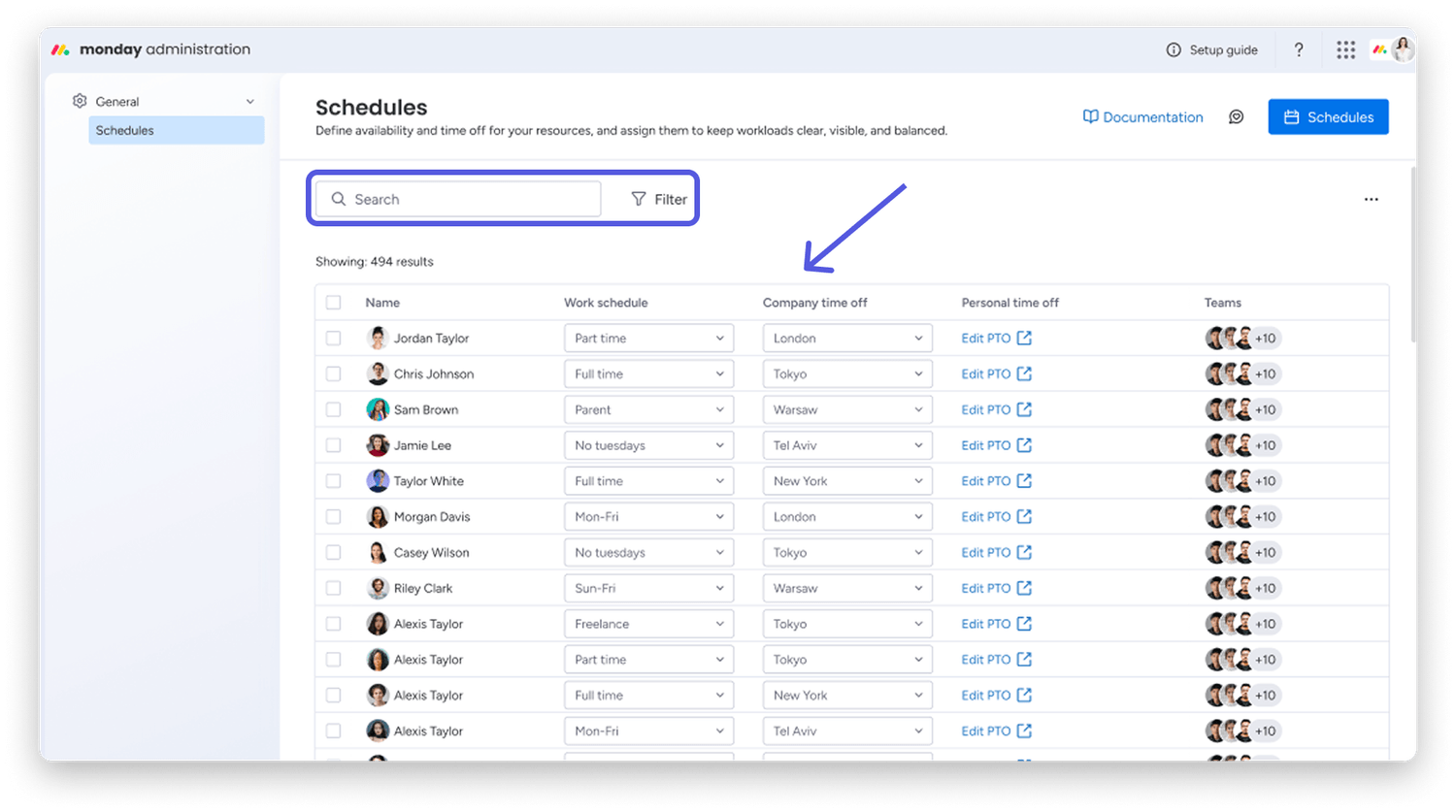
💡 Pro tip: Filter by team first before selecting resources. It's the fastest way to assign a regional holiday calendar to an entire group without going row by row.
Managing Personal Time Off (PTO)
PTO is logged separately from holiday schedules and flows directly into the Workload Widget, giving you an accurate picture of who's actually available for upcoming project phases.
Admins and members with editing access can log PTO for any resource straight from the Schedules page — just find the person, click Edit PTO, select the dates, and save.
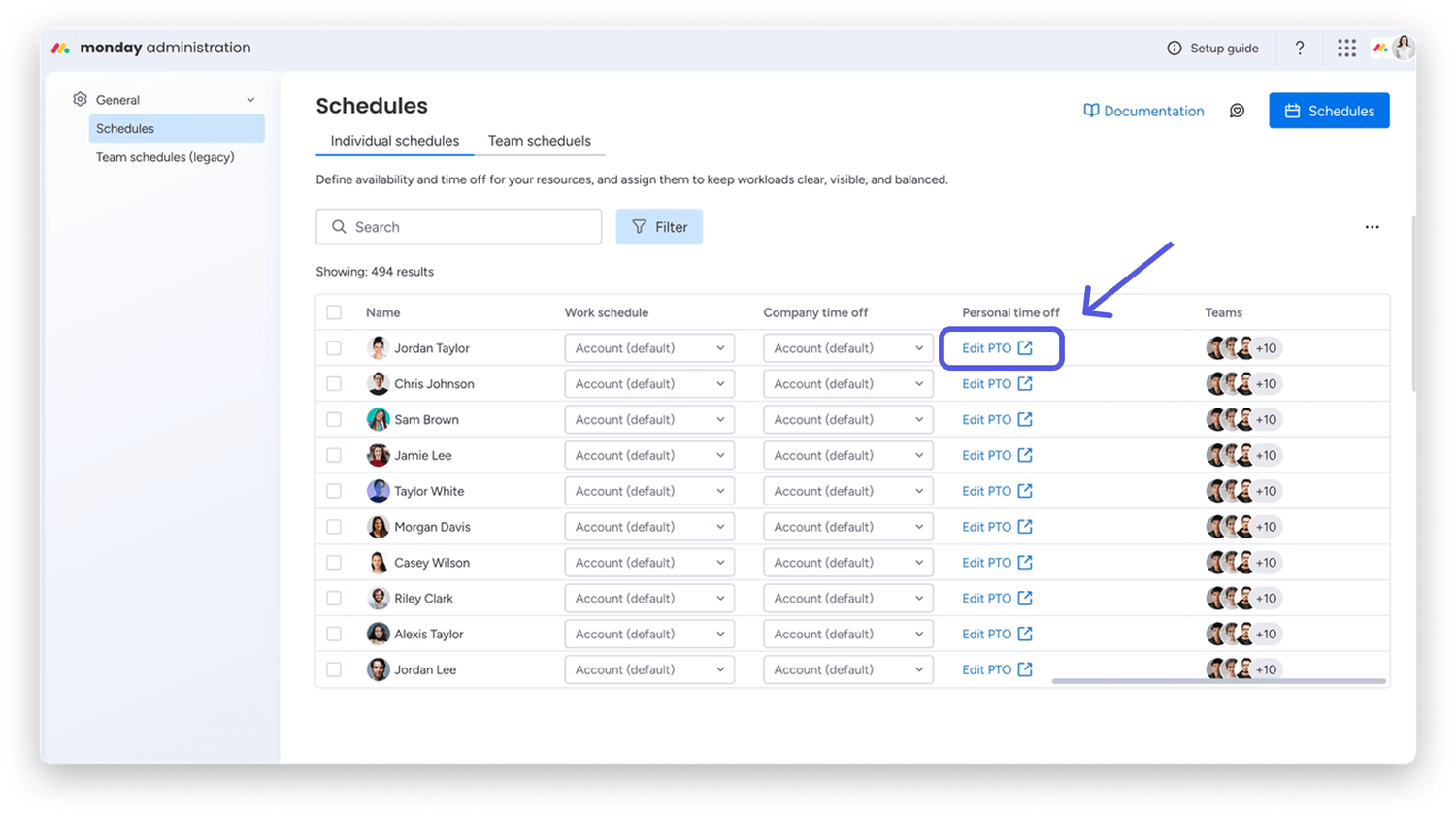
If you want team members to manage their own time off, you can grant them that permission under Account Permissions. Once enabled, they can log their own absences from the Schedule tab in their profile. One thing to be aware of: there's no approval step — PTO logged by team members takes effect immediately. Make sure that aligns with your team's processes before turning it on.
Connected to Your Existing Workflows
This feature integrates cleanly with the tools you're already using:
Workload Widget (Pro & Enterprise) — PTO is visible here, keeping capacity views accurate
Resource Planner & Capacity Manager (Enterprise) — pulls in schedule data for detailed planning
API access — HR tools and external systems can push both PTO and schedule data directly into monday.com, which is a big win for teams with existing HR platforms
A Few Best Practices Worth Following
Before you roll this out to your team, here are a few things to keep in mind:
Keep your default schedules current. Your account has one default work schedule and one default holiday schedule. Any resource without an assigned schedule falls back to these, so make sure they reflect your standard working pattern accurately.
Talk to your team before enabling self-serve PTO. Since PTO logged by team members takes effect immediately with no approval workflow, alignment upfront avoids confusion later.
Check the Workload Widget after making changes. After updating schedules, confirm that availability is reflecting correctly for upcoming project phases — especially before kicking off a new initiative.
Why This Is Good News for Resource Planning
One of the biggest challenges in project management isn't the work itself — it's knowing whether you have the capacity to take it on. Overbooking people because you didn't account for a regional holiday, a planned vacation, or a difference in working hours leads to missed deadlines, burnout, and frustrated stakeholders.
With this update, monday.com gives teams a structured, flexible way to build accurate availability into their planning from the start. Whether you're managing a team of 10 or coordinating resources across multiple regions, having work schedules, holidays, and PTO tracked independently — and visible in one place — is a genuine upgrade to how capacity planning works.
Need Help Getting This Set Up?
At Achievan, we help teams get the most out of monday.com — from initial setup to advanced resource planning configurations. If you're on a Pro or Enterprise plan and want to make sure your schedules, workload views, and capacity planning are set up in a way that actually reflects how your team works, we'd love to help.
Achievan is a certified monday.com partner helping teams across healthcare, construction, manufacturing, financial services, and more build better workdays through no-code software solutions.
SHARE


We help teams improve Productivity by implementing no-code software solutions
A Division of
Execute Strategy, Inc.
Connect with Us


Copyright © Execute Strategy Inc. O/A Achievan 2026